How To Update the Firmware on My PetSafe® FreshFeed Refrigerated Pet Feeder
Important Information
If you have notifications turned on for the app in your phone settings, you will get a notification when an update for the feeder is available or required.
Make sure the feeder has power and is connected to Wi-Fi. This is indicated by a solid blue LED on the front of the feeder.
- If you do not see the light or you are having difficulty seeing the light, adjust the brightness. For more information, visit How To Change the Settings on My PetSafe® FreshFeed Refrigerated Pet Feeder.
- If the light is something other than solid blue, visit What Do the Lights Mean on My PetSafe® FreshFeed Refrigerated Pet Feeder?
Open the PetSafe® Pet Companion app and select your feeder from the product list.
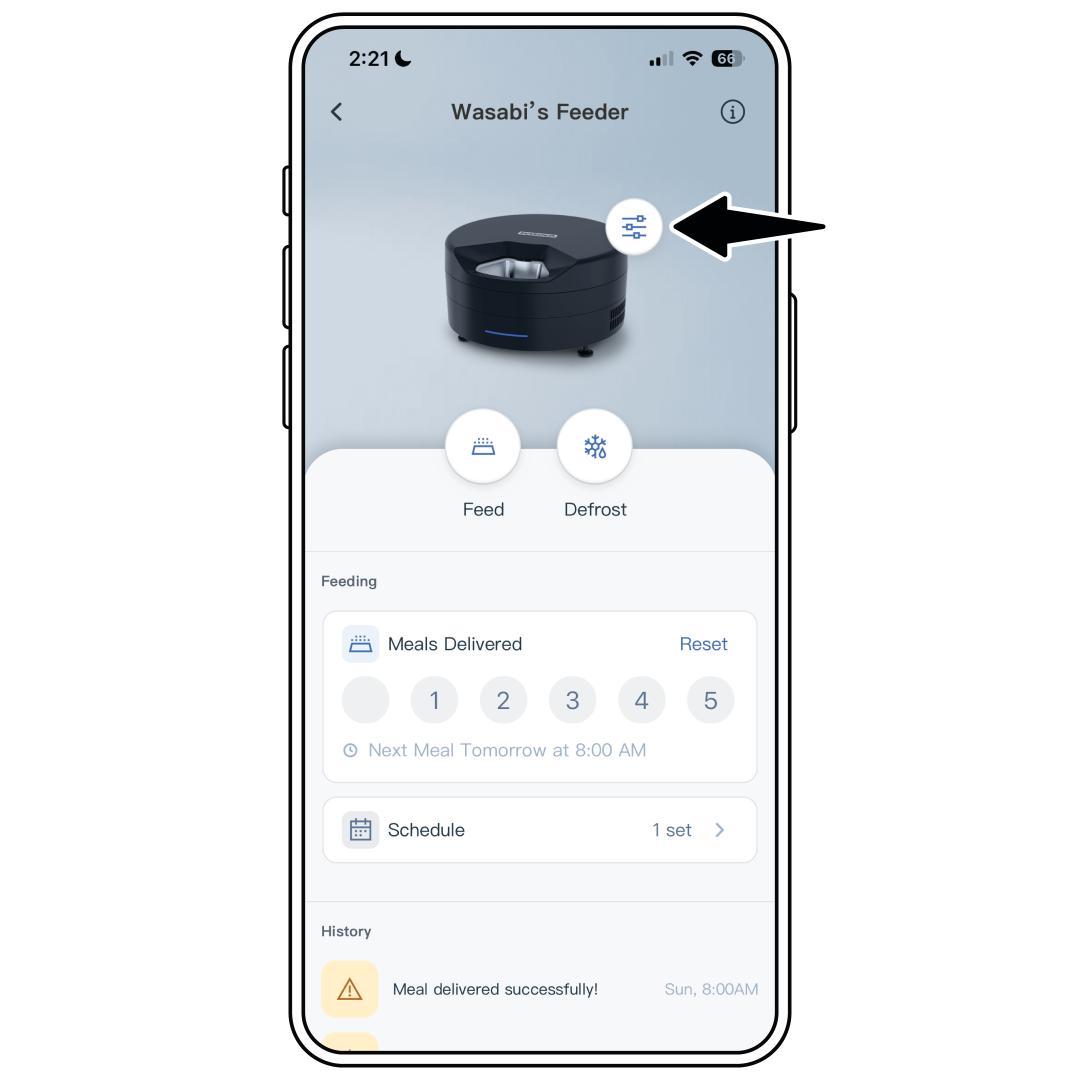
Tap the settings icon next to the feeder image.
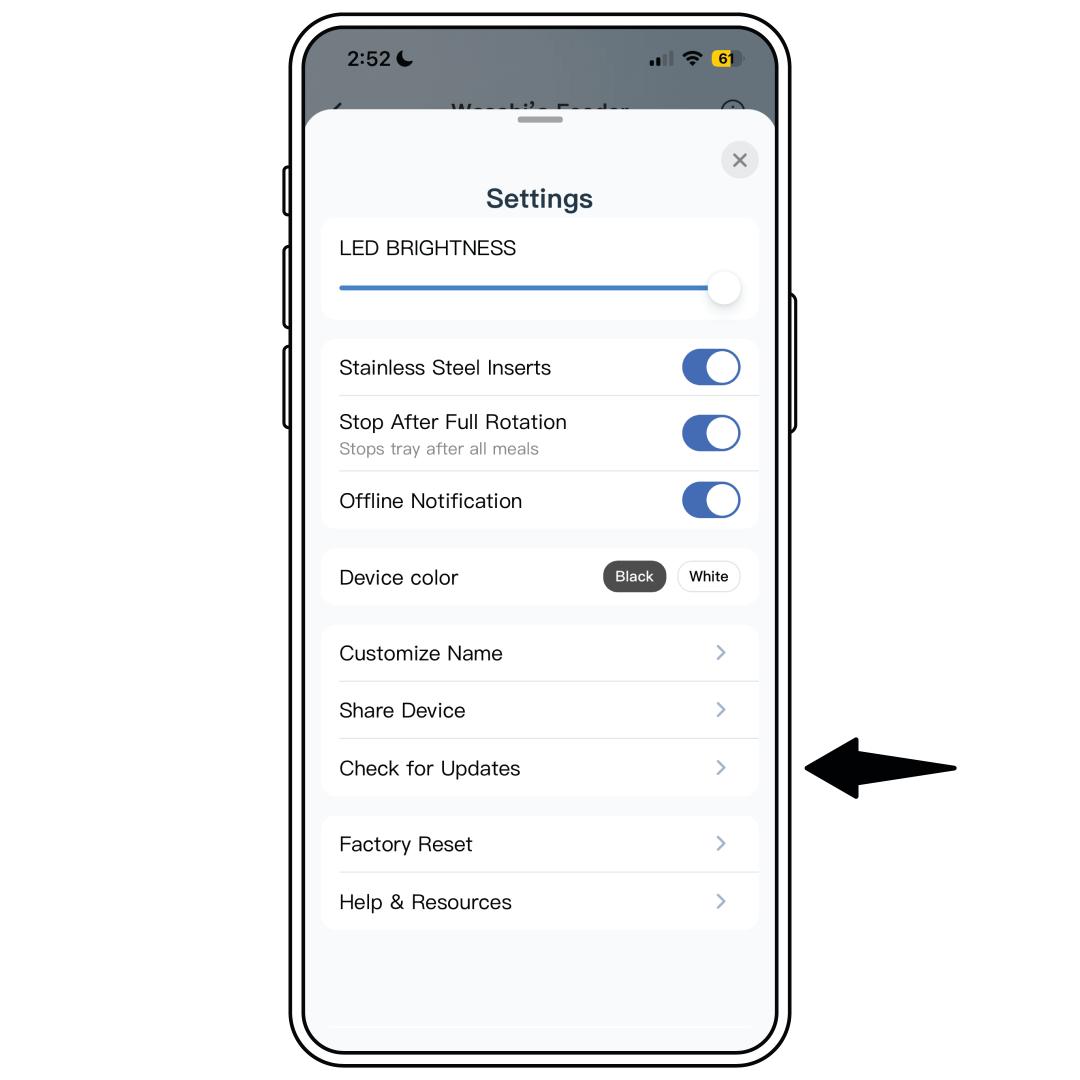
From the settings menu, select Check for Updates.
- If any updates are available, an update option will be displayed. Otherwise it will display the current firmware version with no updates available.
Select Update to start. During the update, do not close the app or unplug the feeder, your Wi-Fi router or modem.
Auto Update
The Auto Update feature will ensure your feeder’s firmware stays up-to-date. However, some key device features will still need to be confirmed to update. This setting is defaulted off.
The feeder will update during inactive times. While it is updating, the feeder will temporarily be offline.
Open the PetSafe® Pet Companion app and select your feeder from the product list.
Tap the settings icon next to the feeder image.
From the settings menu, select Check for Updates.
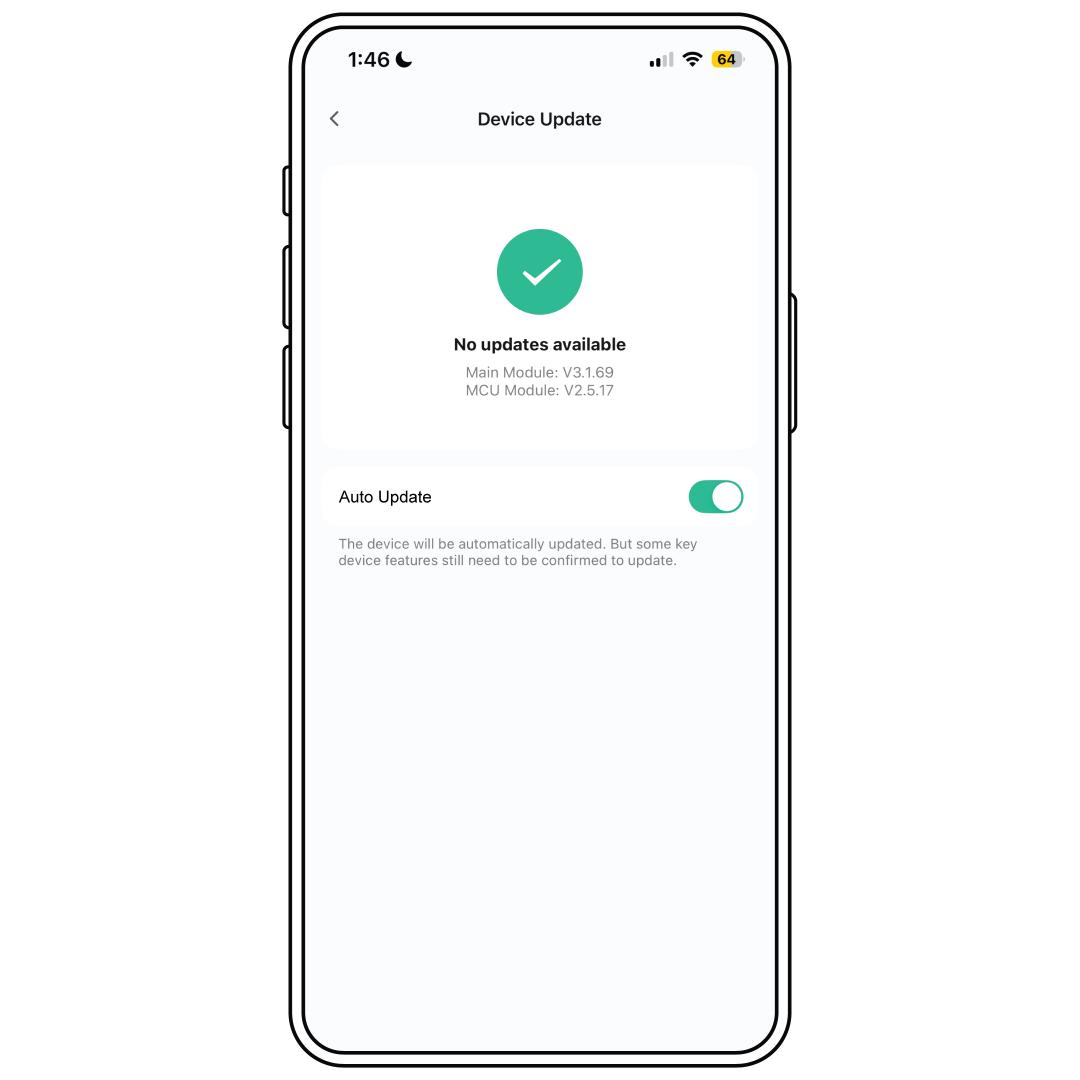
Toggle Auto Update on.
Select Confirm.