How To View Battery Status and Charge My PetSafe® GPS Cat Tracker
Plug in the Charging Base
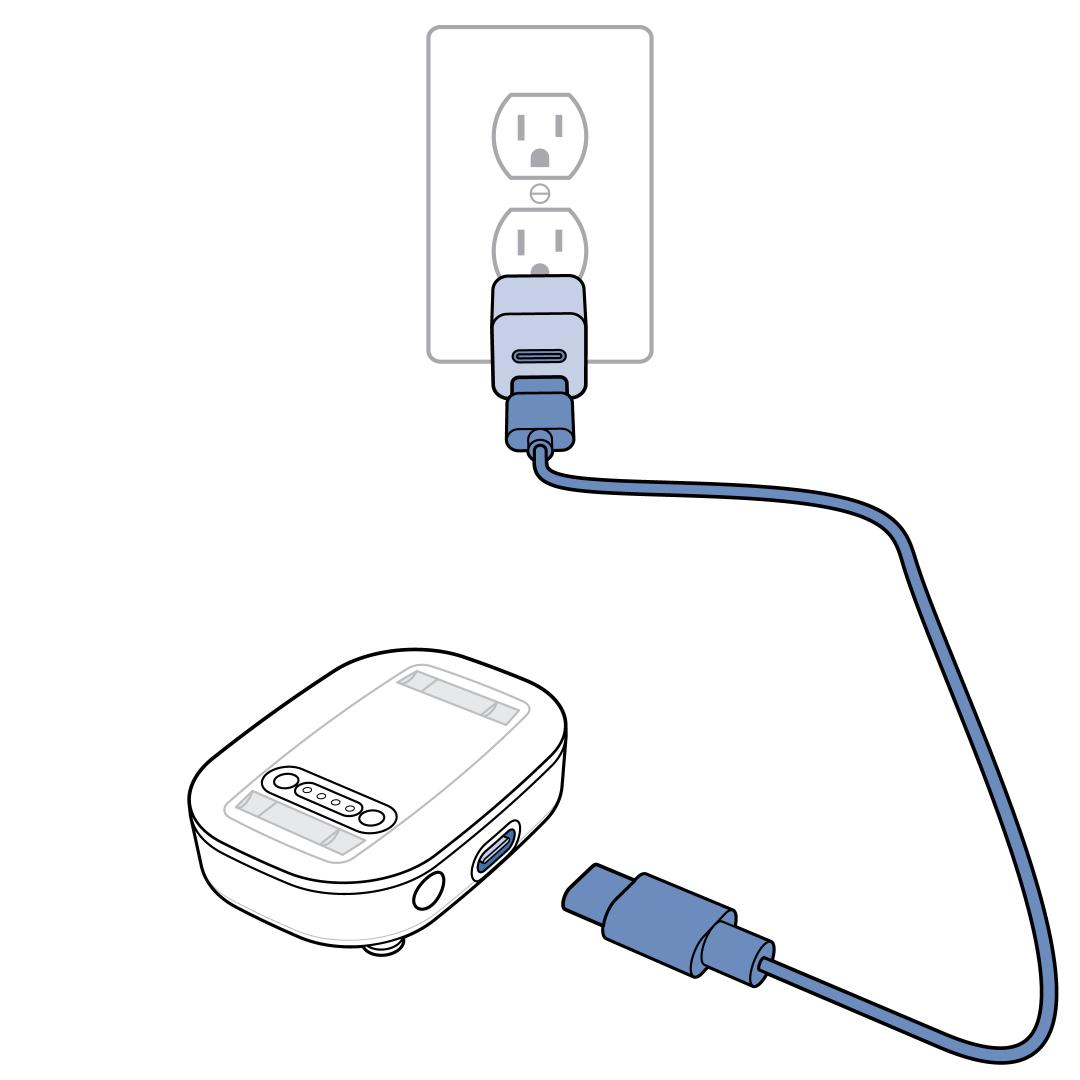
Plug the USB-C into the wall adaptor (5V-1A) and then the wall adaptor into a standard electrical outlet. This should be done before plugging into the Charging Base to avoid any power surges to the Charging Base which can damage it.
Connect the other end of the power cable to the Charging Base. The Charging Base light will glow solid green when it is powered on, fully set up and connected to Wi-Fi.
- There is about a 5-second delay from the time the Charging Base is plugged in and the time the Charging Base light turns on.
- If the Charging Base is a different color, visit What Do the Lights Mean on My PetSafe® GPS Cat Tracker and Charging Base?
- If the Charging Base does not have power, visit Tracker or Charging Base Won’t Connect to the Internet or Wi-Fi - PetSafe® GPS Cat Tracker.
Charge the Tracker
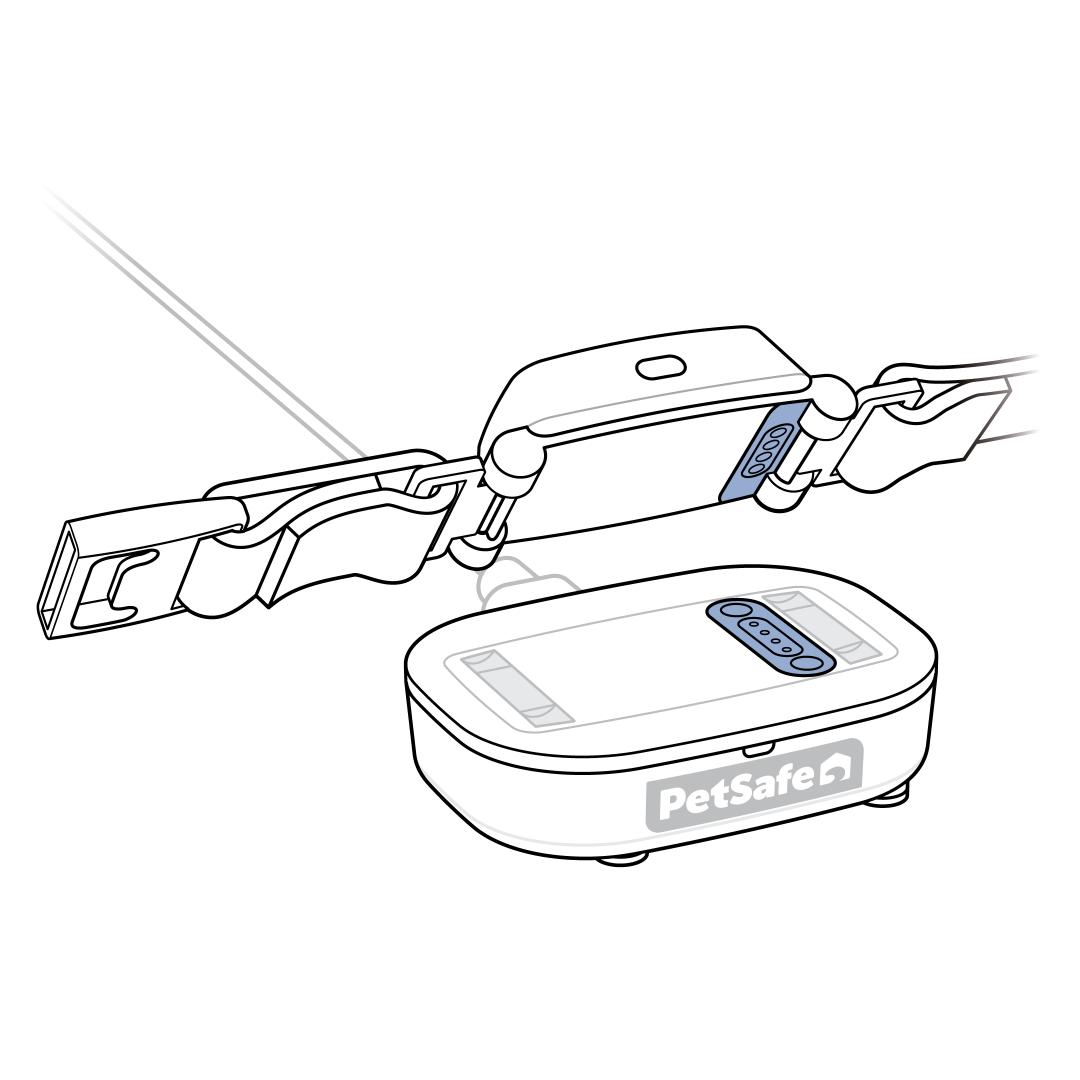
Place the Tracker on the Charging Base, making sure the charging contacts on the Tracker align with the charging contacts on the Charging Base. There’s a magnetic connection and a tone when placed correctly.
- The Tracker will pulse green while charging.
When the Tracker is fully charged (about 2 hours), the LED will glow a solid green light and it can now be removed.
Important: The Charging Base will apply any firmware updates to the Tracker while it is charging. The Tracker LED will slowly pulse white if an update is in progress. DO NOT remove the Tracker from the Charging Base until the update is complete.
View Battery Level and Charging Status
View each Tracker’s charging status while it’s on the Charging Base, and its battery level and charging status when it’s off the Charging Base, directly from the Live Dashboard.
Additionally, if you have your battery notifications turned on, the app will send a low battery alert. For help with turning on notifications, visit How To Turn on My PetSafe® GPS Cat Tracker Notifications.
Battery Level and Charging Status From the App

Open the My PetSafe® app and choose GPS Tracker from the product list if prompted.
- In most cases, the app will open directly to the Live Dashboard.
If Live Dashboard is not visible on the screen, tap LIVE in the bottom-left corner of the app screen.
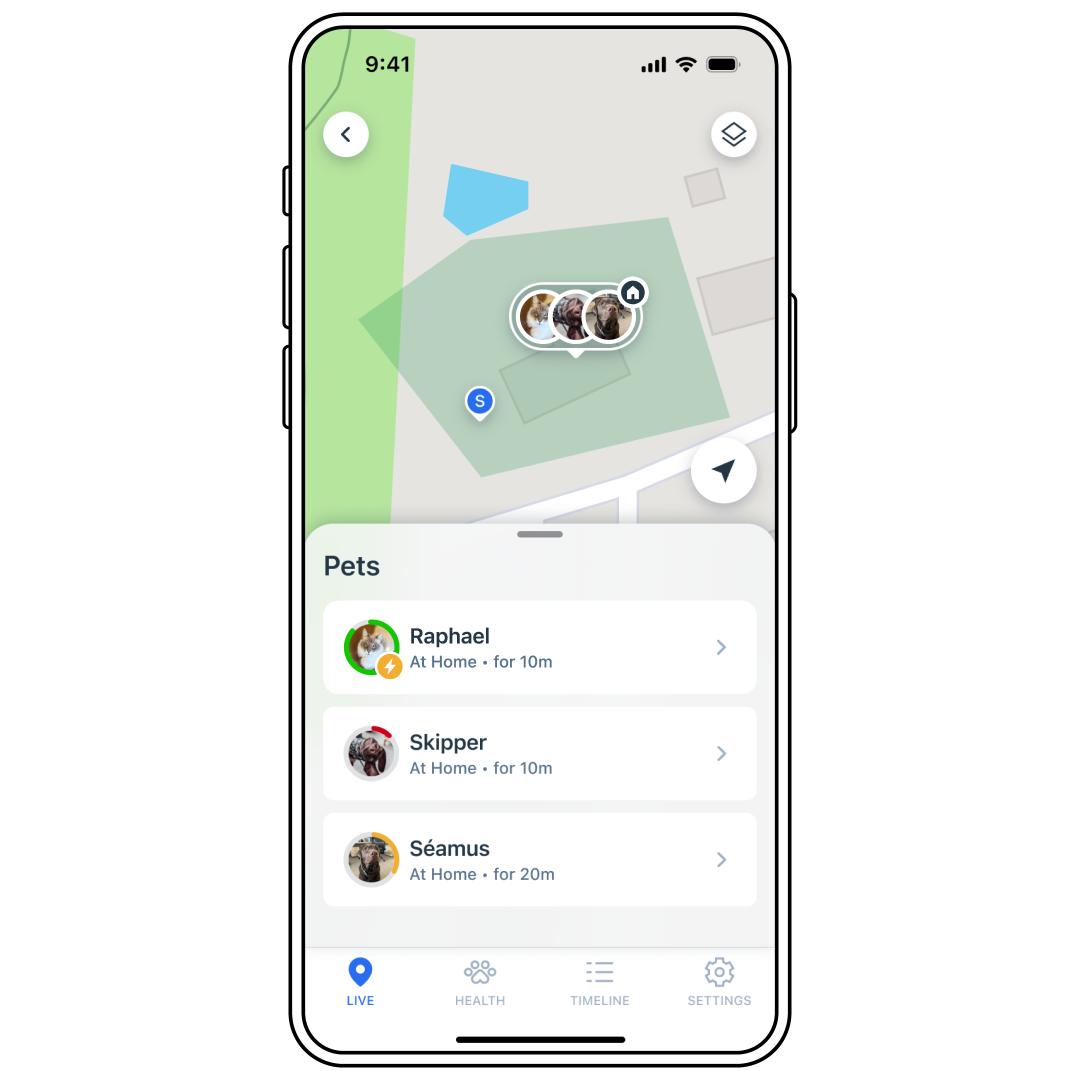
View each available Tracker’s battery level and charging status here.
The battery level and charging status are indicated by the colors below, with a lightning bolt icon indicating charging.
- Green: Full battery
- Yellow: Partially charged battery
- Red: Low battery
Tap on a Tracker to expand its details and view the exact battery percentage.
Charging Status While on the Charging Base

You can determine the Tracker's charging status by its light while on the Charging Base.
- Green Pulse: Charging
- Green Solid: Fully charged