How To Set Up My PetSafe® GPS Cat Tracker
Before You Begin
- You need your phone, the Charging Base, adaptor and the Tracker.
- For compatibility with your Charging Base, confirm that you have a 2.4GHz Wi-Fi network with a WPA2, WPA3 or WEP security type. If you are unsure what type of network you have, contact your internet provider.
- If you haven’t already, download the My PetSafe® app and follow the prompts for account setup.
Set Up the Tracker
Make sure your phone’s Bluetooth settings are enabled.
This is to ensure a connection with your Tracker and the app during setup, as well as the overall functionality of the Tracker.
Plug the Charging Base into a wall outlet in a spot with strong Wi-Fi where your dog usually hangs out indoors.
This ensures timely setup and updates. When the Tracker is near the Charging Base, the Tracker will switch to Base Sync to help conserve battery.
Do not place the Tracker on the Charging Base yet. Wait until you are prompted by the app.

Open the My PetSafe® app and tap Add Product.
Follow the on-screen prompts to add your product. The app will notify you when it recognizes the Tracker.
- Ensure the Tracker and Charging Base are within 5 feet of the phone, so they are within range to be found.
- If the app doesn’t automatically find your Tracker, try manually adding the Tracker from the product list.
- Once your Charging Base flashes blue, it is ready to connect. If it does not flash blue, visit App Can’t Find My Tracker or Charging Base - PetSafe® GPS Cat Tracker.
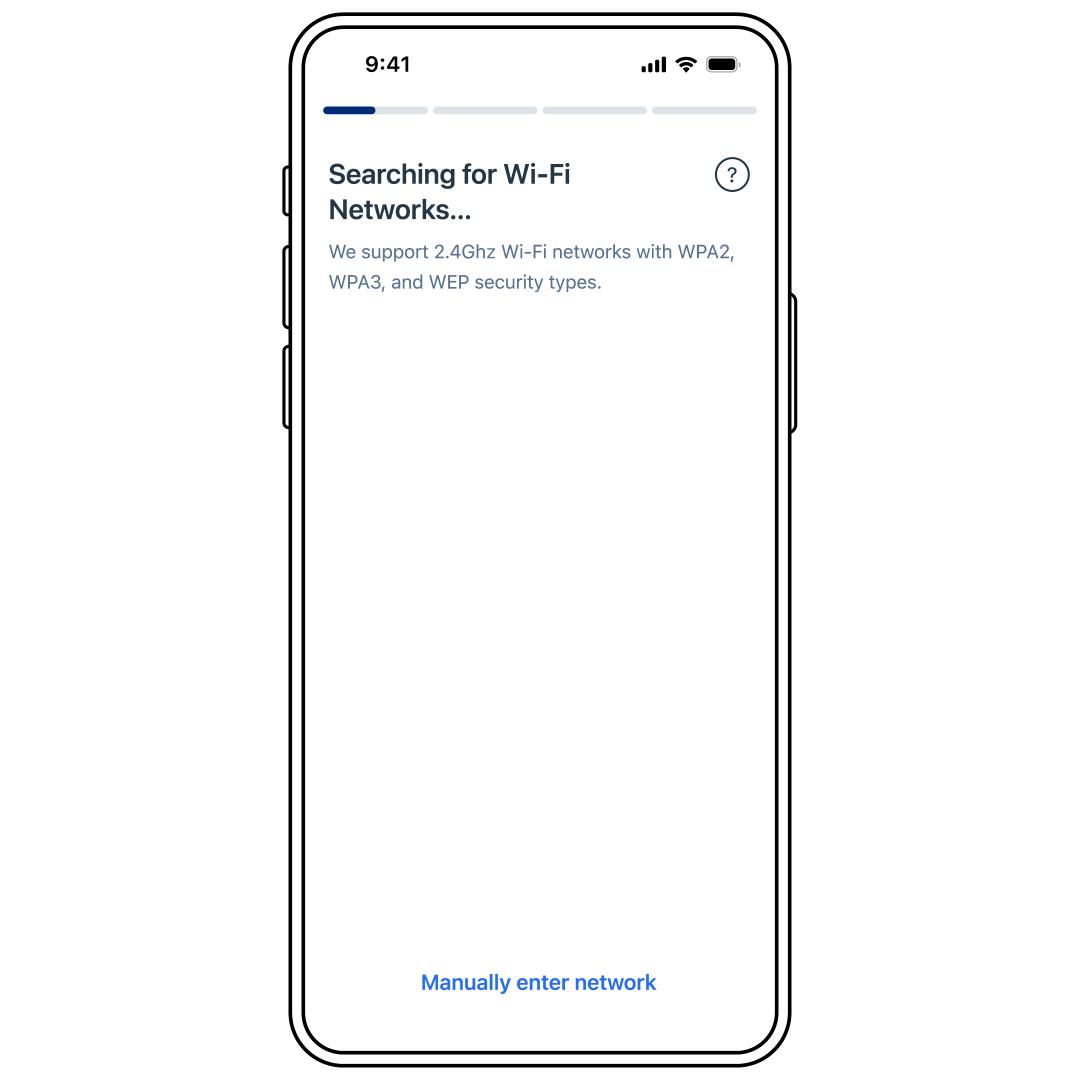
Follow the prompts to connect your Charging Base to the Wi-Fi network.
- If you have trouble connecting the Charging Base to Wi-Fi, visit Tracker or Charging Base Won’t Connect to the Internet or Wi-Fi - PetSafe® GPS Cat Tracker.
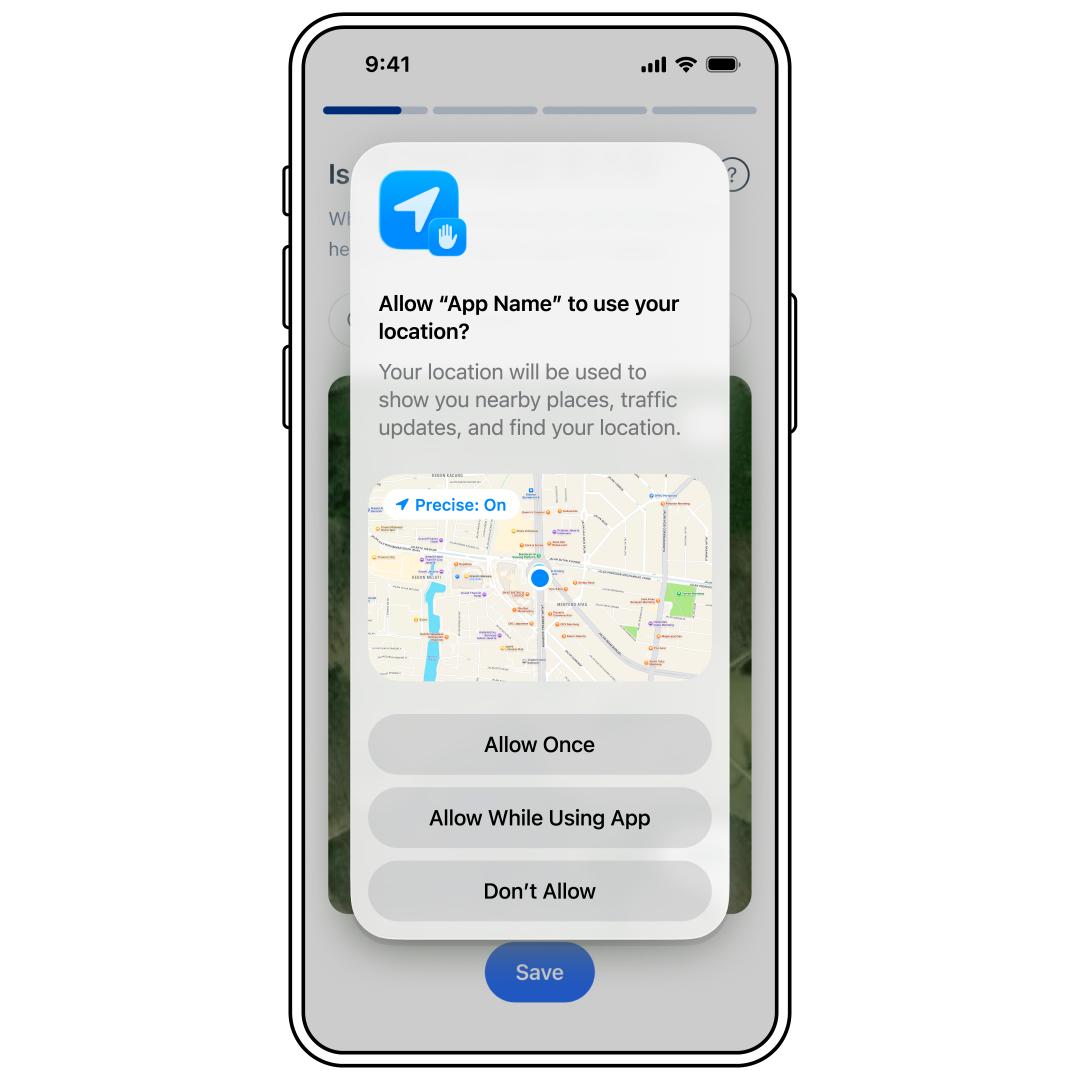
Follow the prompts to set the network location.
- The app will ask to use your location. You must select Allow While Using App in order to successfully set up the Tracker.
- You can use the search bar to find your address if it is not pulling up the correct one.
- Press Save to confirm your network location.
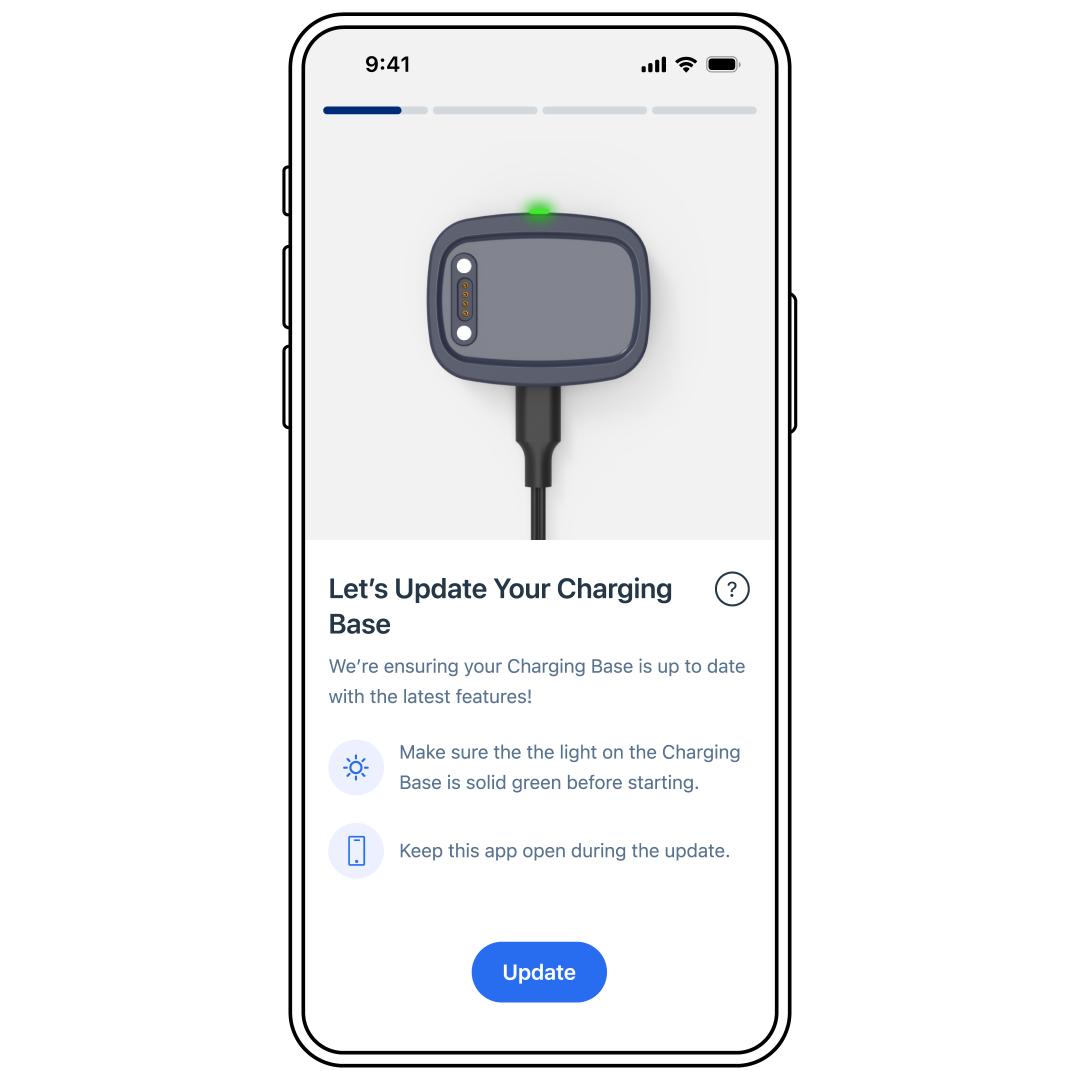
Follow the prompts to make any necessary updates to the Charging Base.
- If the update fails, you can retry the update from the app. If it continues to fail, visit Tracker or Charging Base Won’t Update During Setup - PetSafe® GPS Cat Tracker.
Important: Do NOT close the app or unplug the Charging Base while it pulses white, indicating an update.
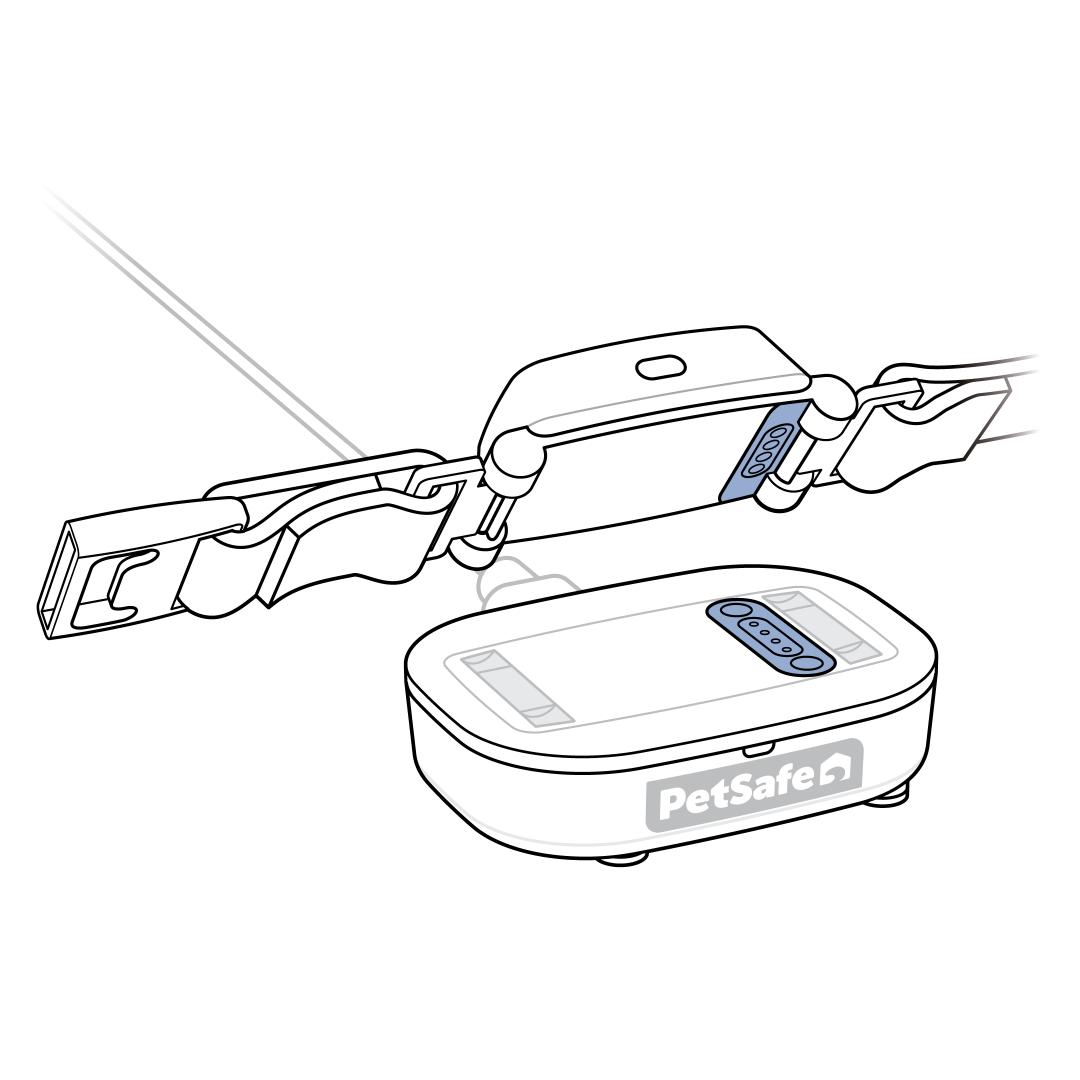
Once prompted by the app, place the Tracker on the Charging Base by aligning the charging contacts on the Tracker and Charging Base. There is a green light and a tone when placed correctly.
- If the app doesn’t recognize your Tracker, visit App Can’t Find My Tracker or Charging Base - PetSafe® GPS Cat Tracker.
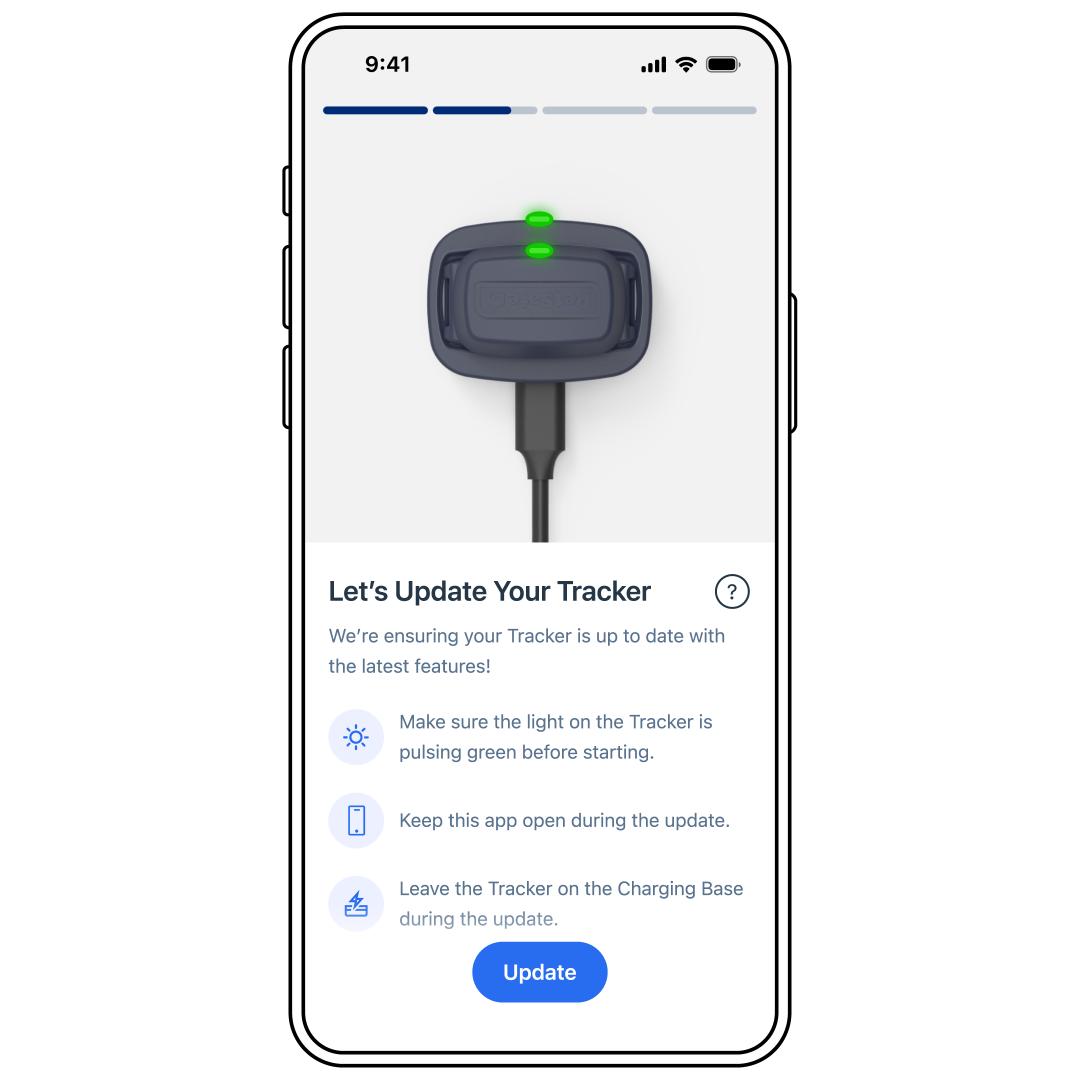
Follow the prompts to make any necessary updates to the Tracker.
- If the update fails, remove the Tracker from the Charging Base, place it back on the Charging Base, and retry from the app. If it continues to fail, visit Tracker or Charging Base Won’t Update During Setup - PetSafe® GPS Cat Tracker.
Important: Do NOT close the app or remove the Tracker from the Charging Base while it is pulsing white, indicating an update.
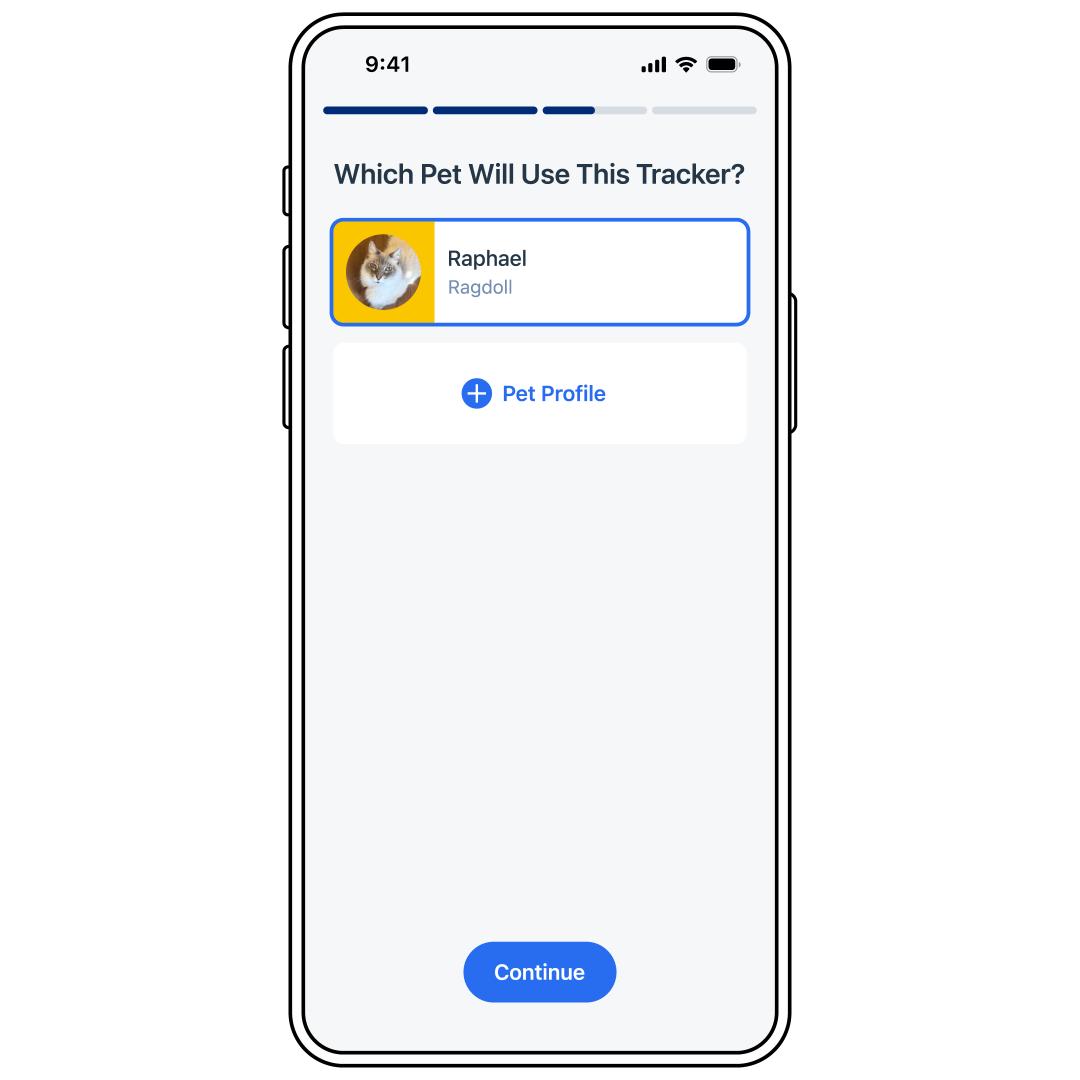
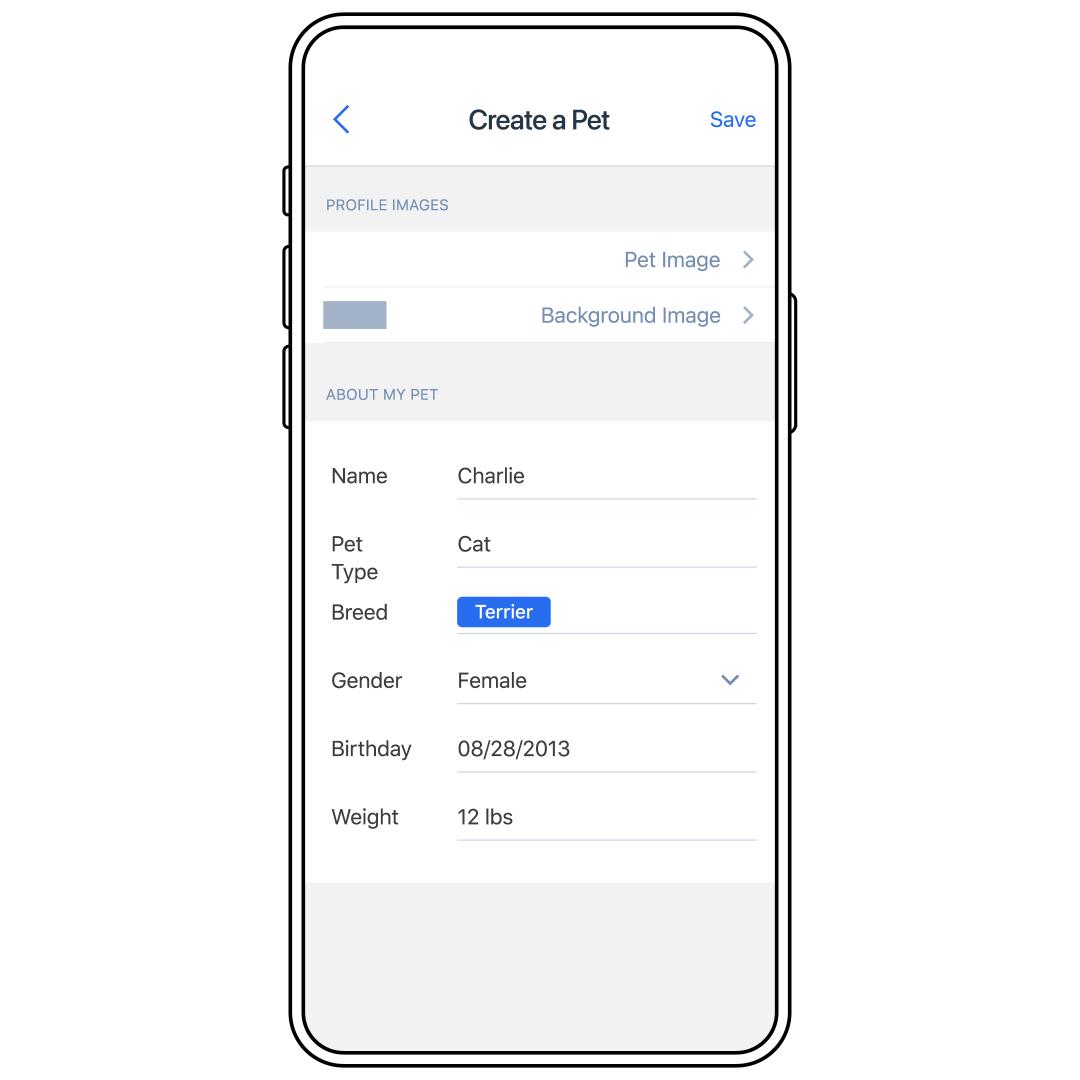
Choose the pet that will be using the Tracker or create a new pet by selecting New Pet. Fill in the ABOUT MY PET fields and press Save in the upper-right corner.
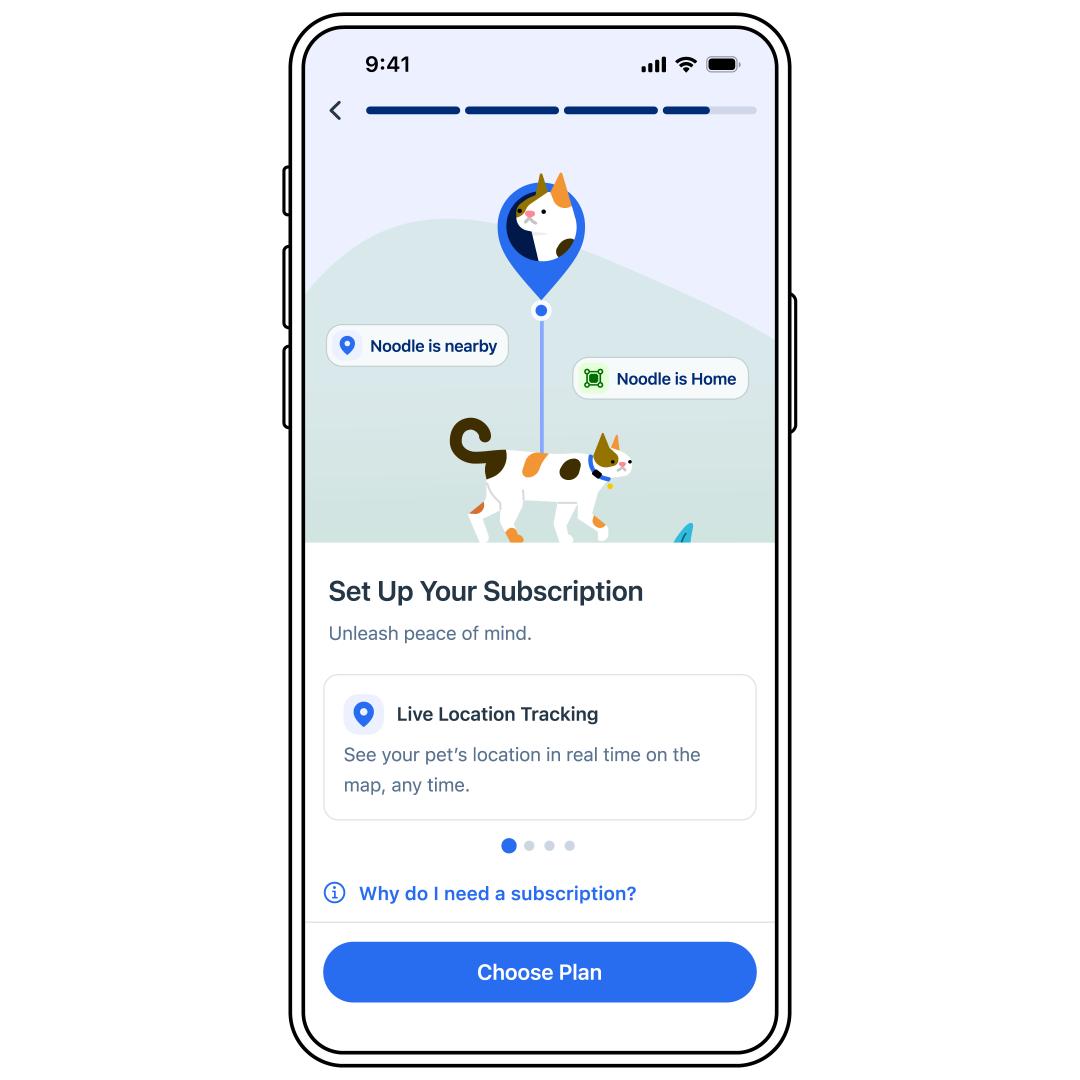
Set up your subscription by following the prompts in the app.
- A subscription is needed to use LTE for live GPS updates, activity and behavior tracking, Safe Zones and alerts, plus access to cloud storage for the cat’s location, health data and family sharing.
Important: Please note that if you are setting up multiple subscriptions, the billing frequency will differ depending on the day each subscription starts.
To access your subscription later, go to Manage Subscriptions in SETTINGS in the My PetSafe® app or visit PetSafe.com and sign in with the email used for your My PetSafe® app account.