How To Set Up, Edit or Delete a Schedule on My PetSafe® SmartDoor™ Connected Pet Door
Important Information
- In order to edit a schedule, you will need to delete the event and make a new one.
- You must have your pet’s key or microchip already paired to the door before you can set a schedule. For more information, visit How To Add, Replace or Remove a Key/Microchip for My PetSafe® SmartDoor™ Connected Pet Door.
To Set Up a Schedule Event
Open the My PetSafe® app.
Choose your SmartDoor™ from the product list.
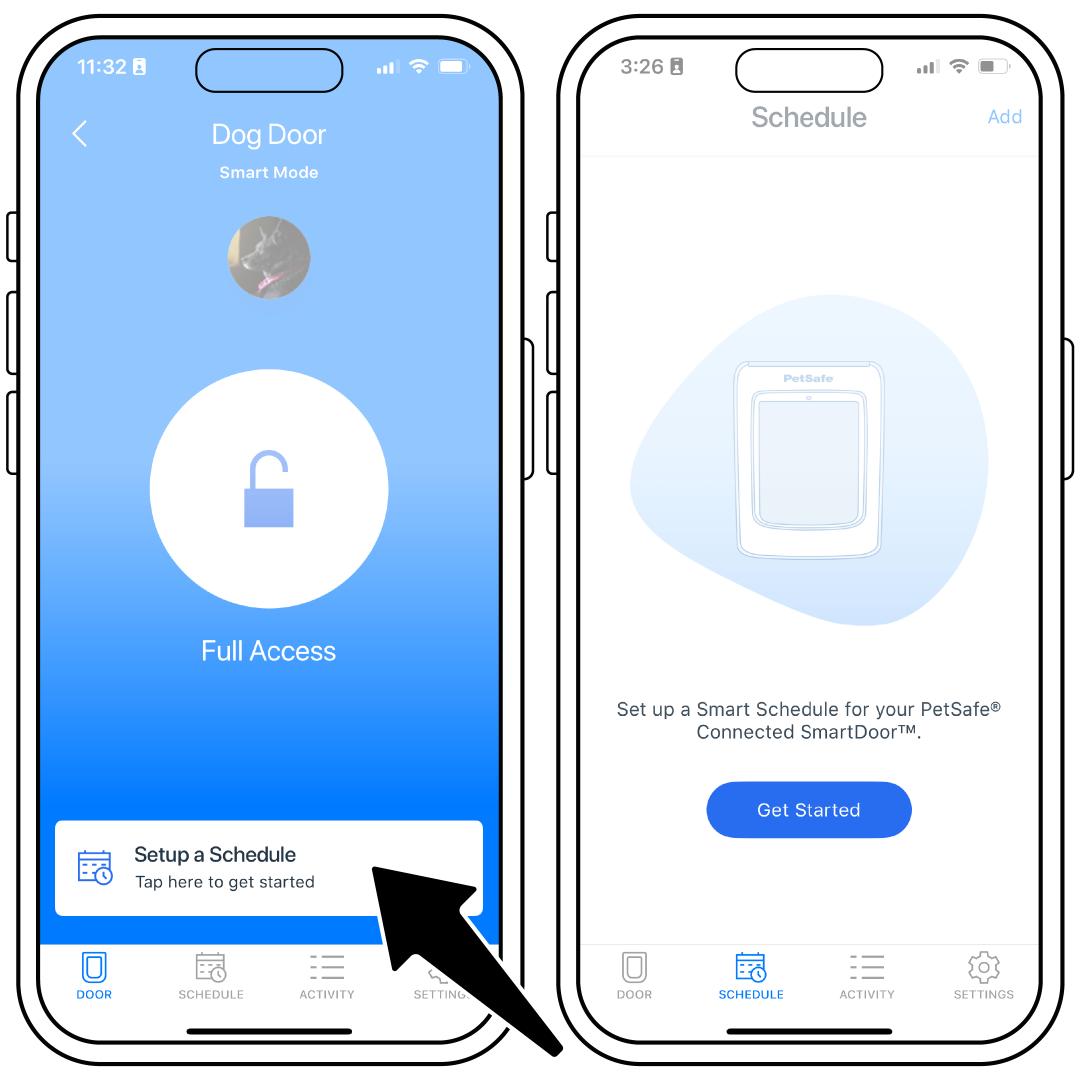
Tap Set up a Schedule at the bottom of the screen and select Get Started.
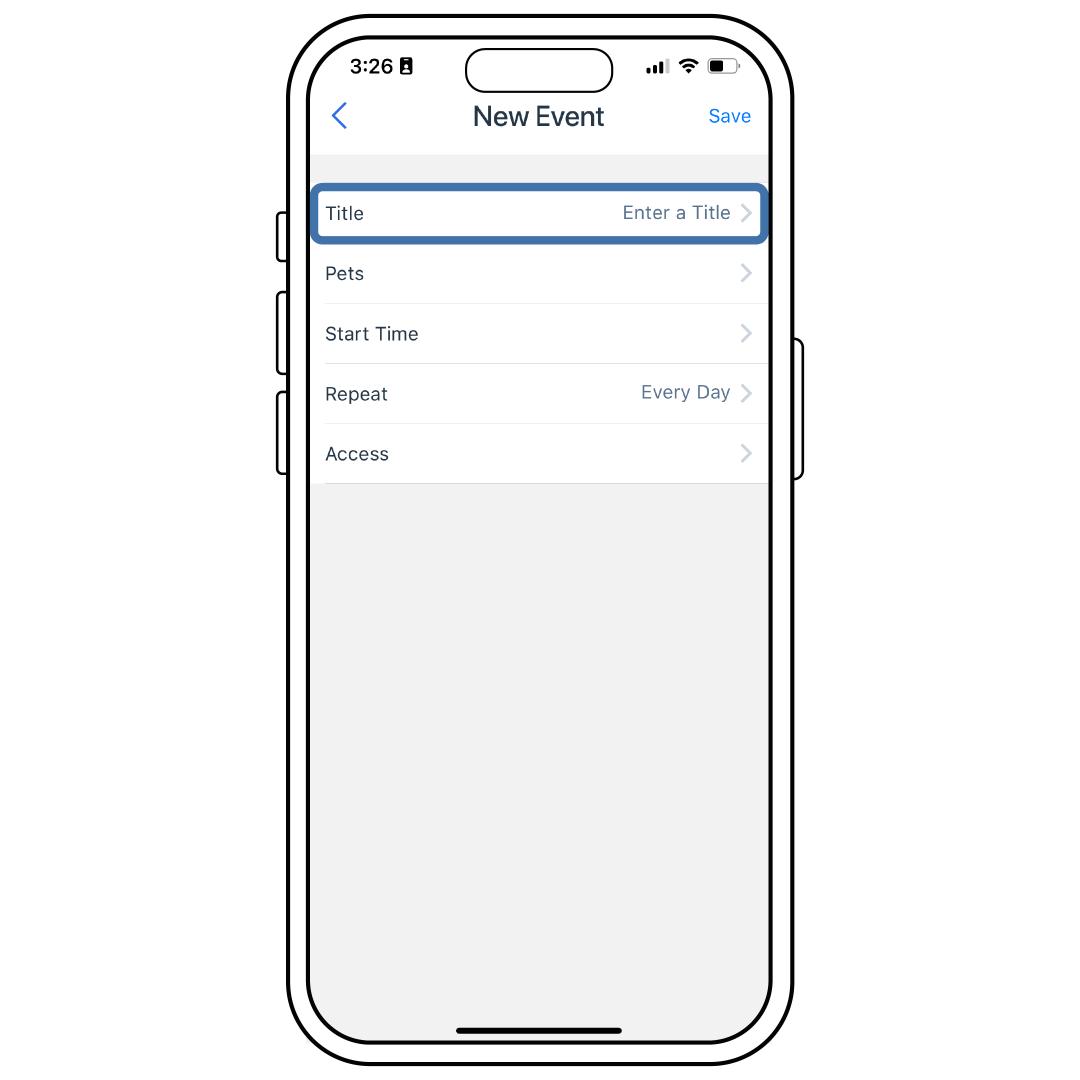
Tap Enter a Title.
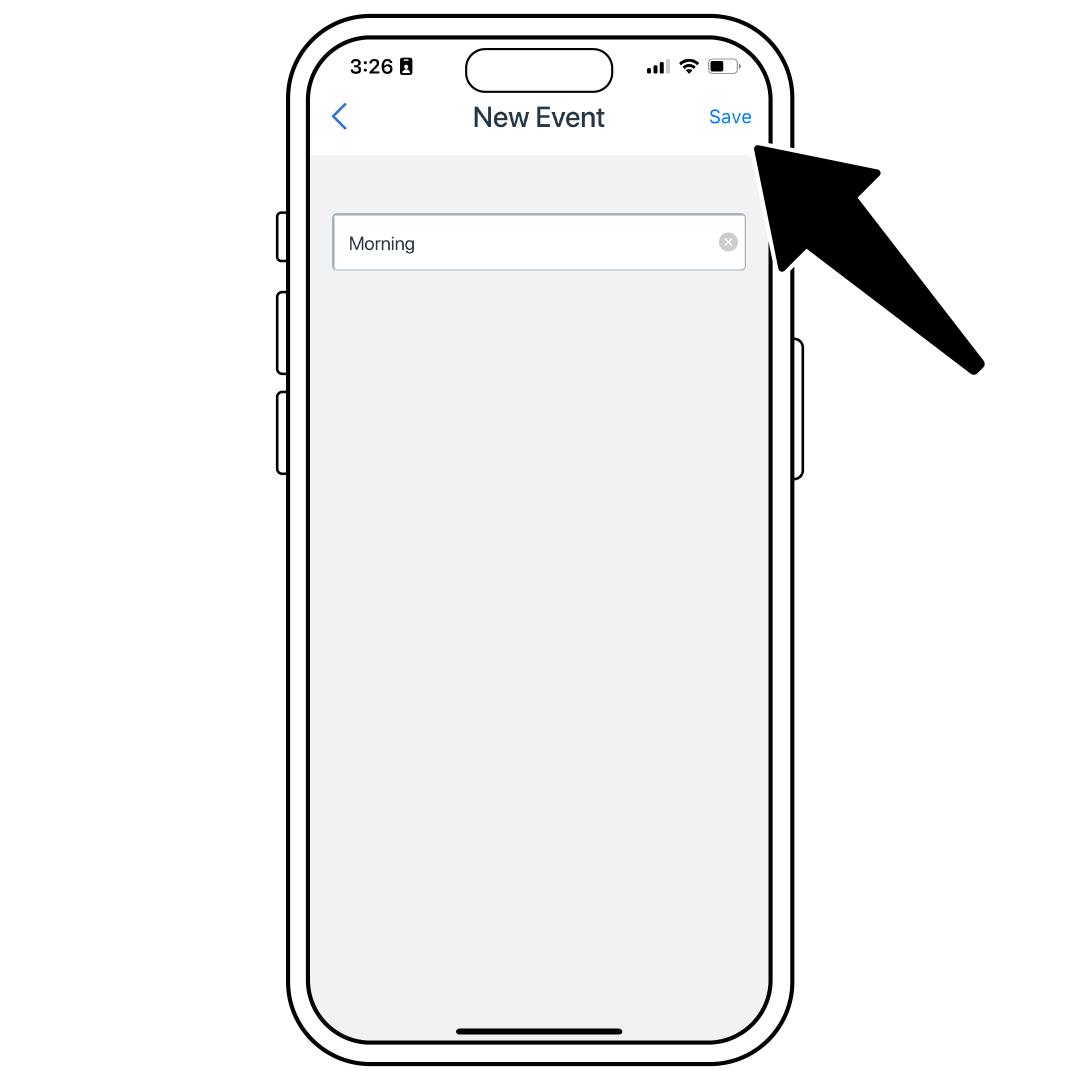
Choose a title for your event and tap Save at the top-right corner of the screen.
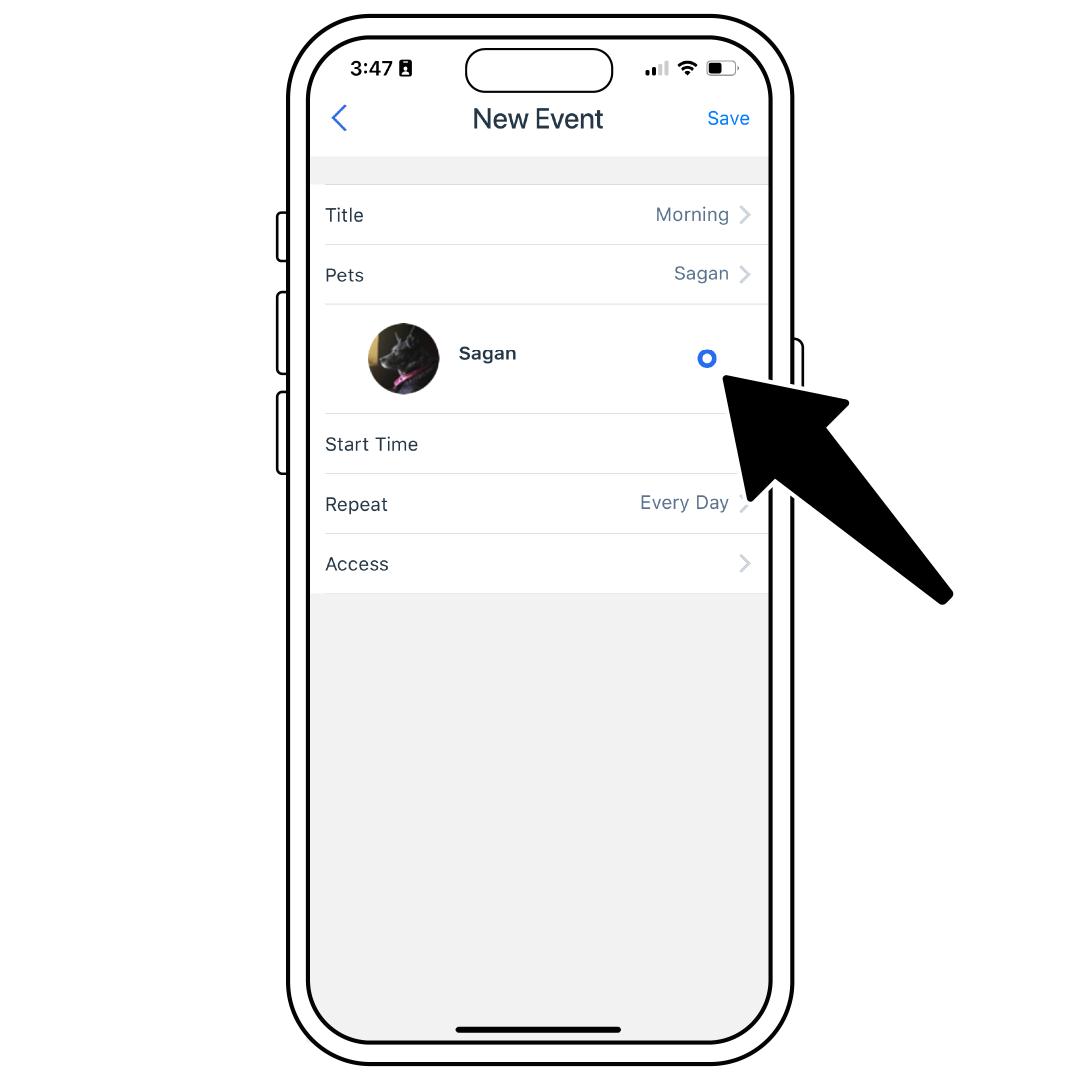
Next choose Pets. Select the pets you would like to add to this event. Selected pets will have a blue circle next to them. If you wish to remove them, tap them again so they no longer have a blue circle next to them.
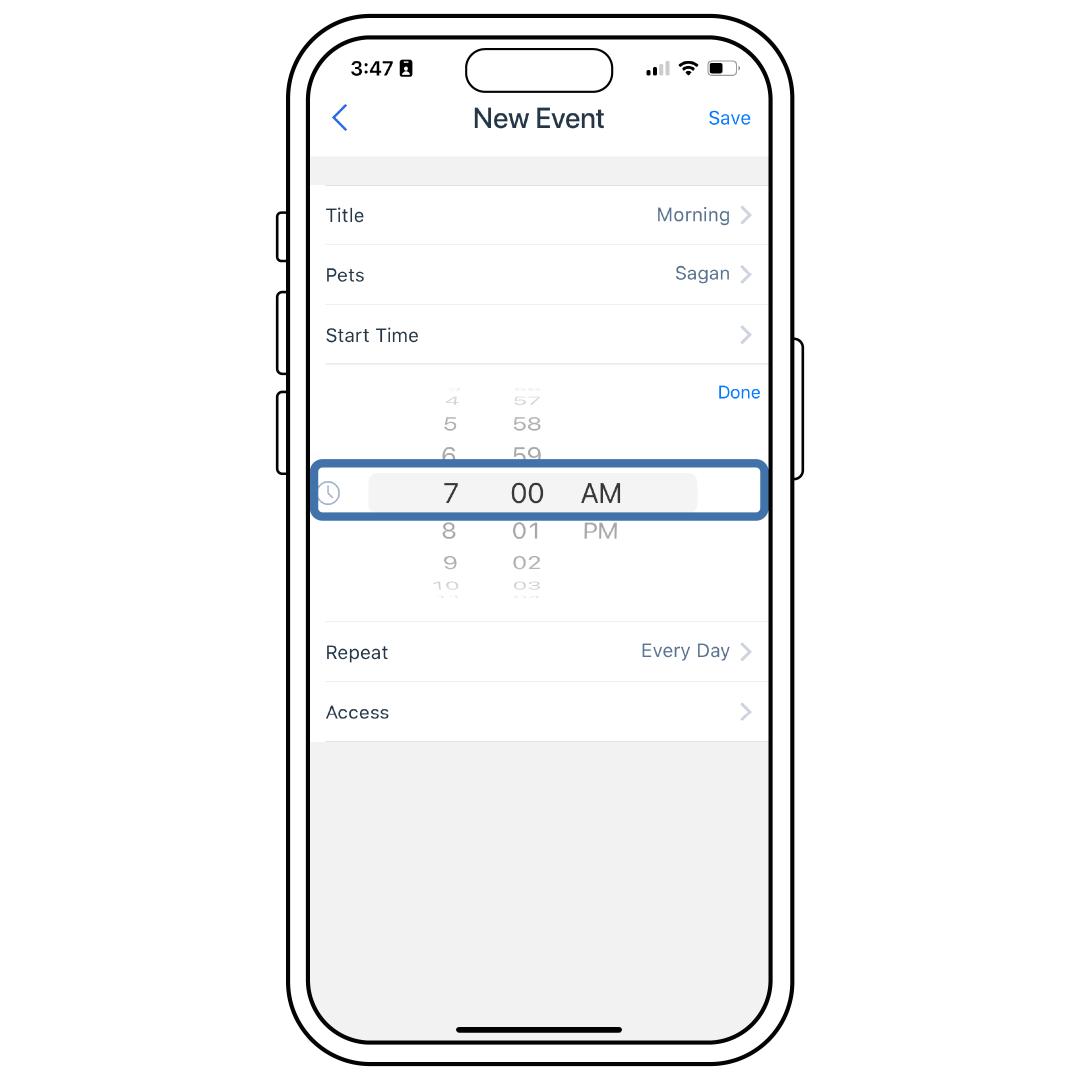
Tap Start Time. Scroll up or down to choose the time you would like this event to start. Please make sure you correctly choose AM or PM to make sure your event starts at the correct time. Tap Done in the right corner of this section.
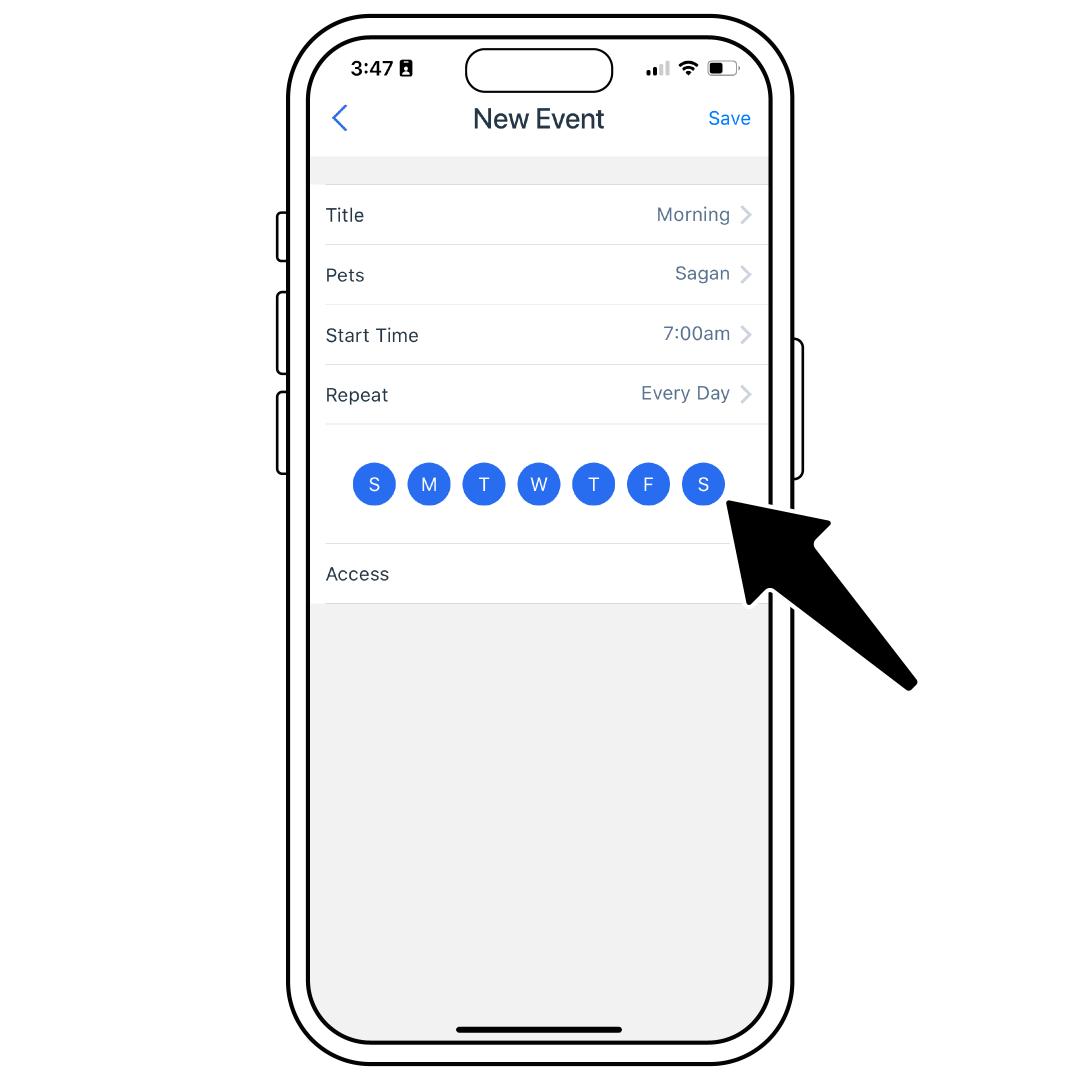
Tap Repeat. Initially all days of the week will be highlighted blue, tap any days you do not want your event to run on. They will no longer be highlighted blue.
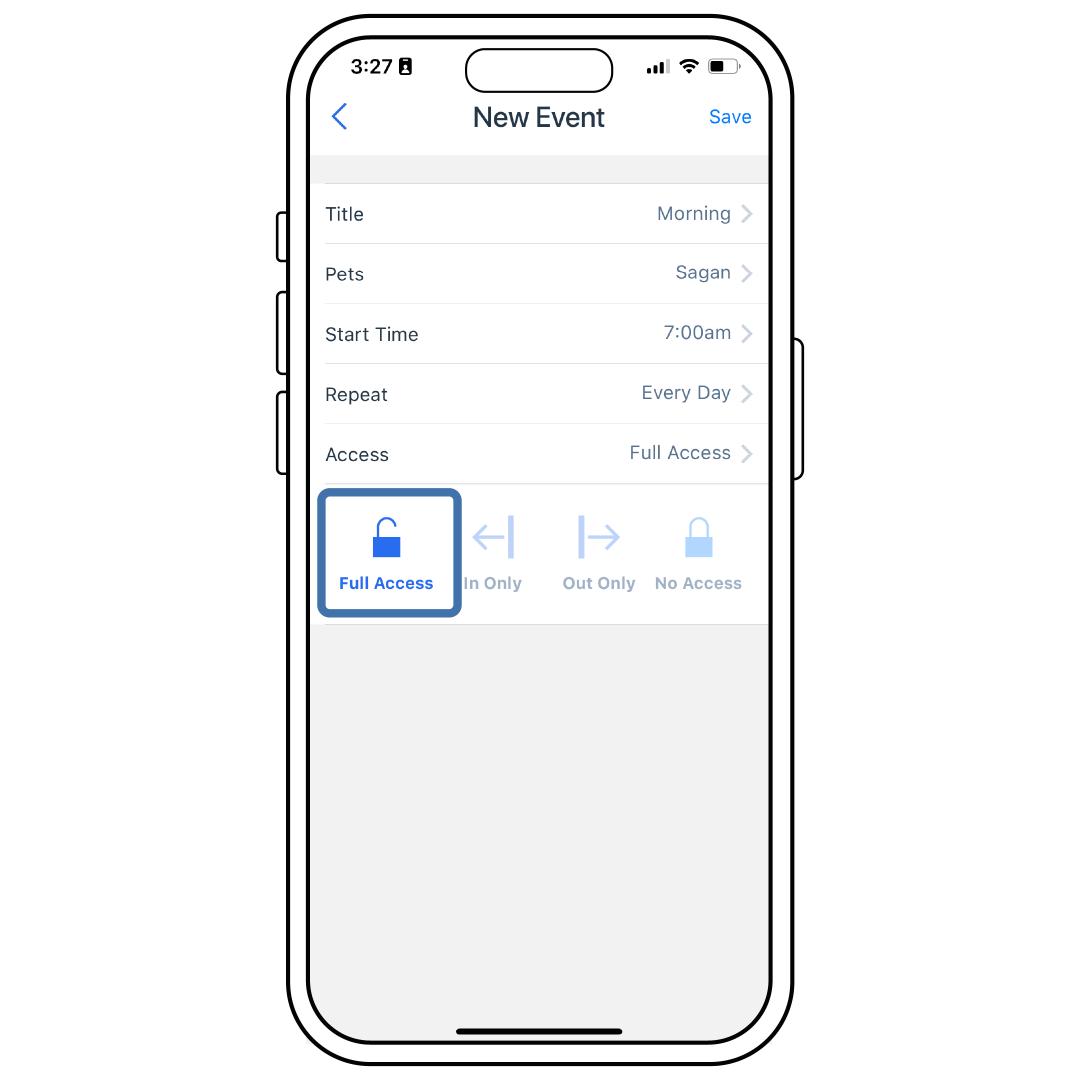
Tap Access. Choose what type of access you would like your pet to have. The access you have chosen will be highlighted blue.
- Full Access: Lets a pet with a paired key/microchip go out and come in.
- In Only: Lets a pet with a paired key/microchip come in but not go out.
- Out Only: Lets a pet with a paired key/microchip go out but not come in.
- No Access: Pets cannot go out or come in, even with a paired key/microchip.
Tap Save at the top-right corner of the screen.
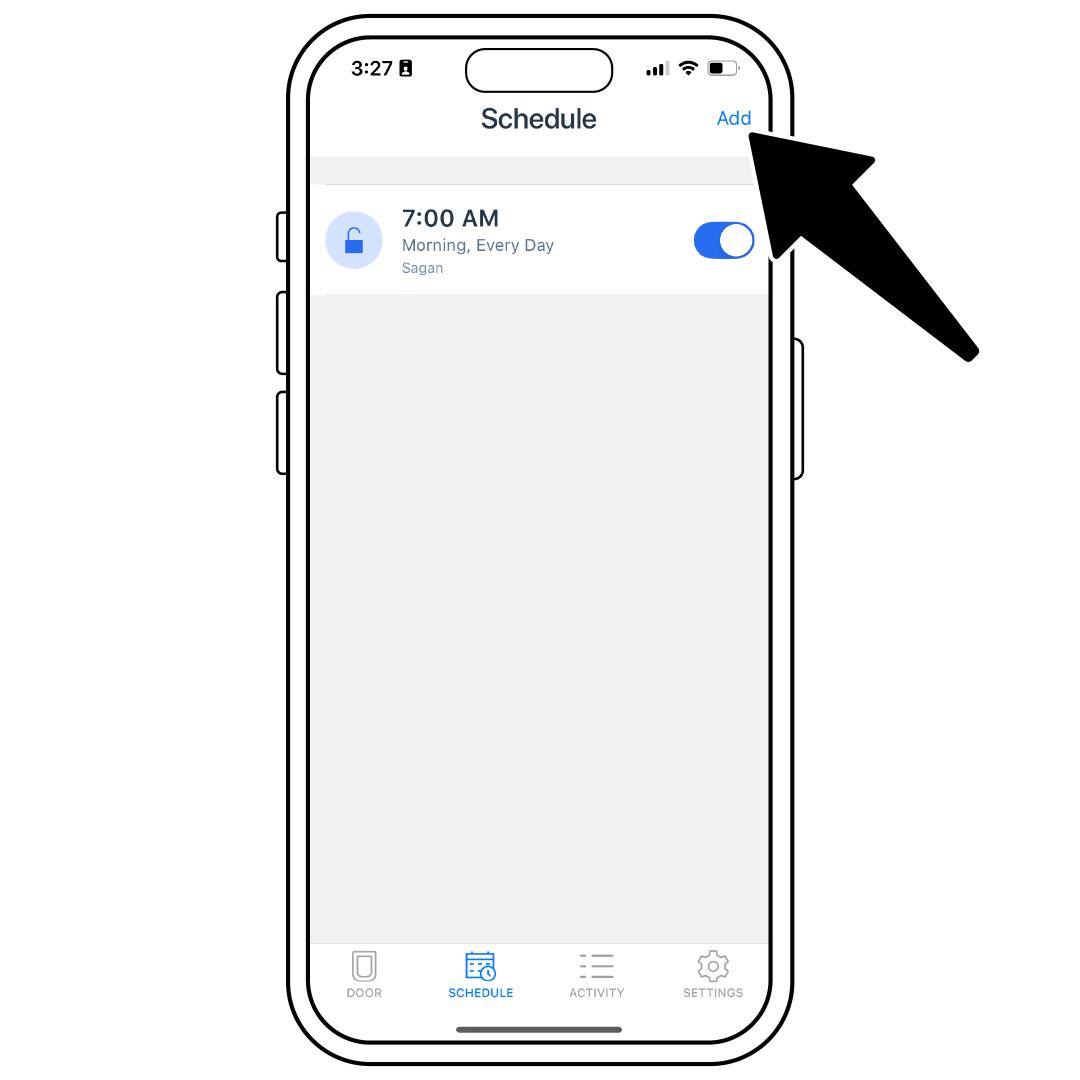
If you need to schedule another event, tap Add in the top-right corner.
To Turn a Schedule Event Off or On
Open the My PetSafe® app.
Choose your SmartDoor™ from the product list.
Tap Schedule at the bottom.
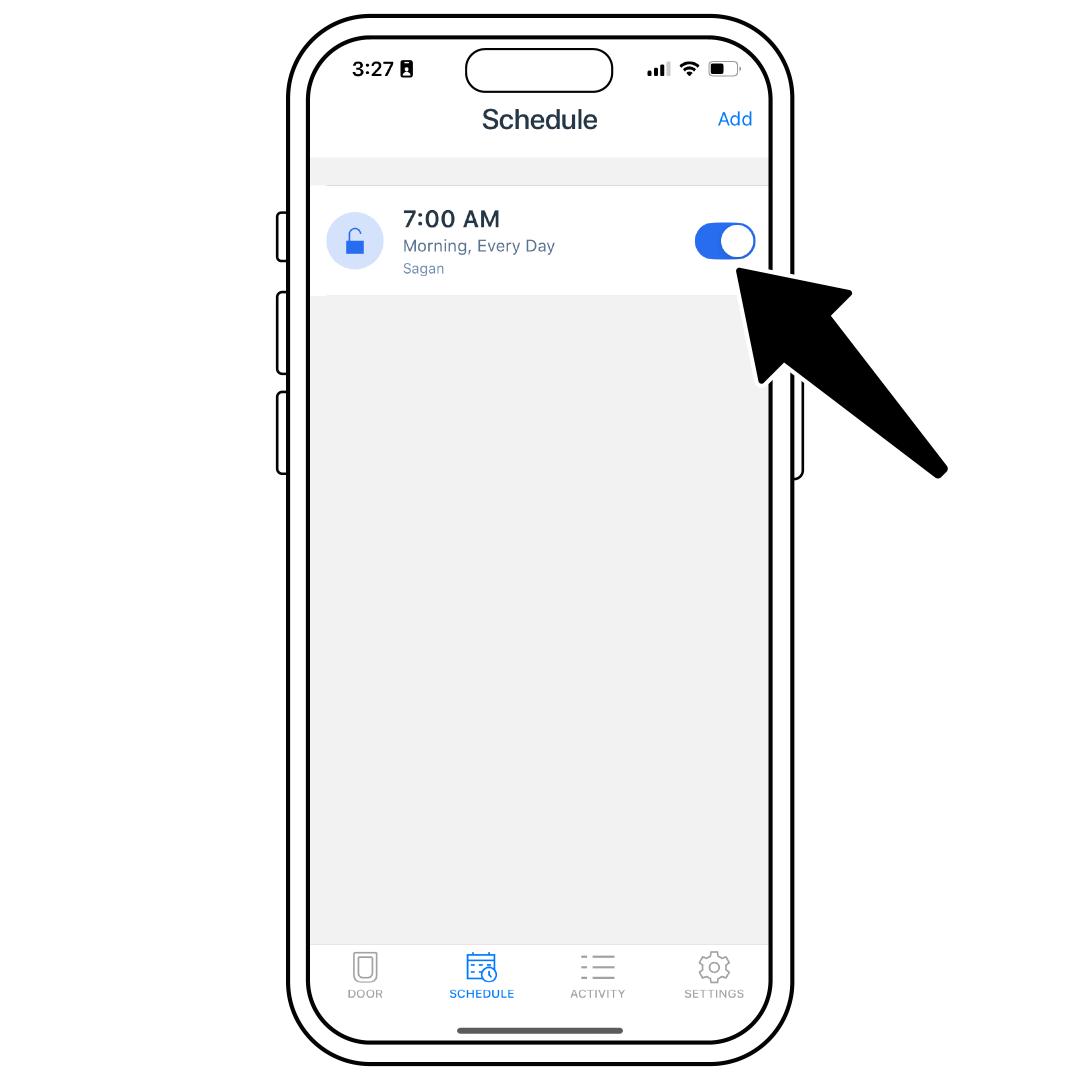
Off: Toggle the slider on the event to grey.
On: Toggle the slider on the event to blue.
To Remove a Schedule Event
Open the My PetSafe® app.
Choose your SmartDoor™ from the product list.
Tap Schedule at the bottom.
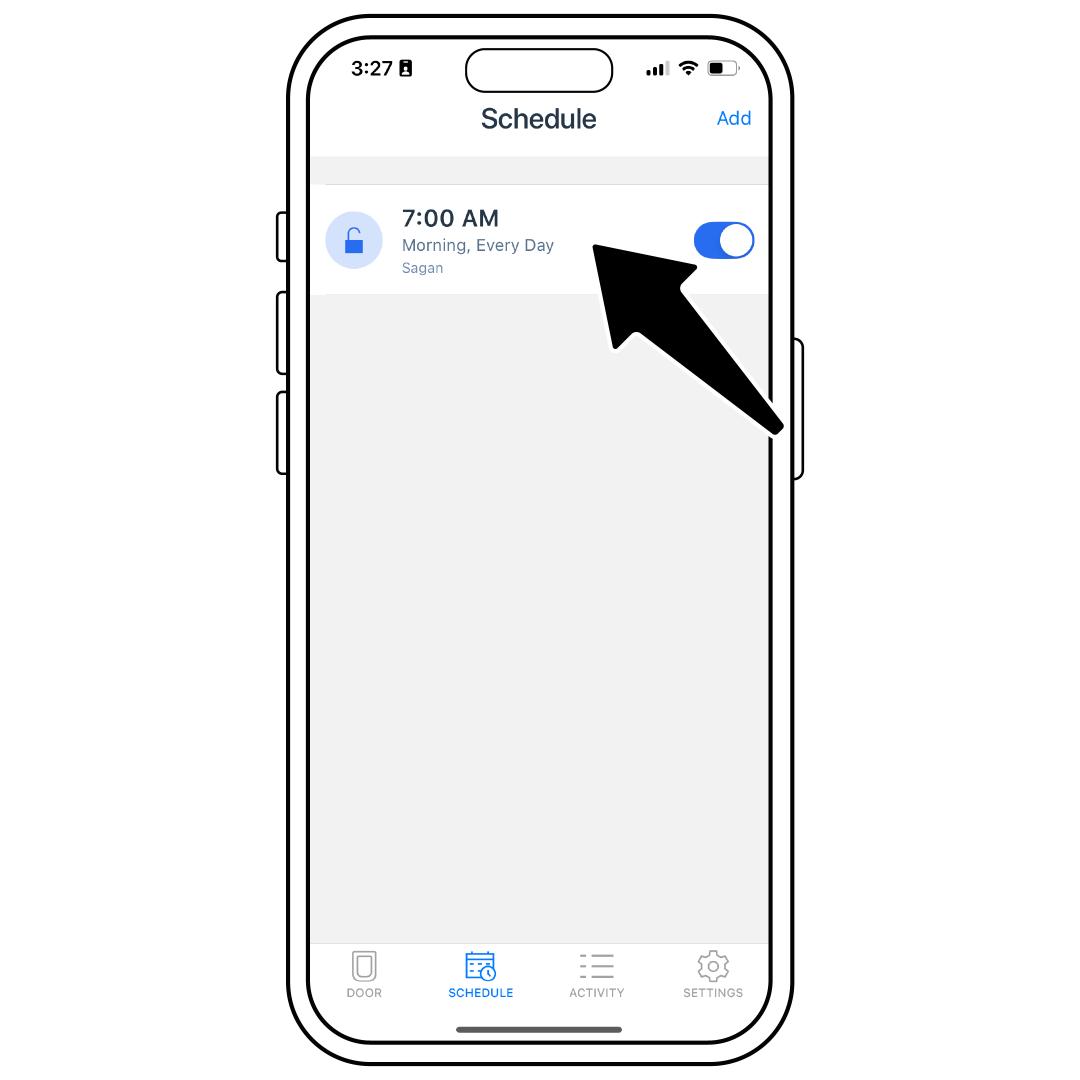
Select the event you would like to remove.
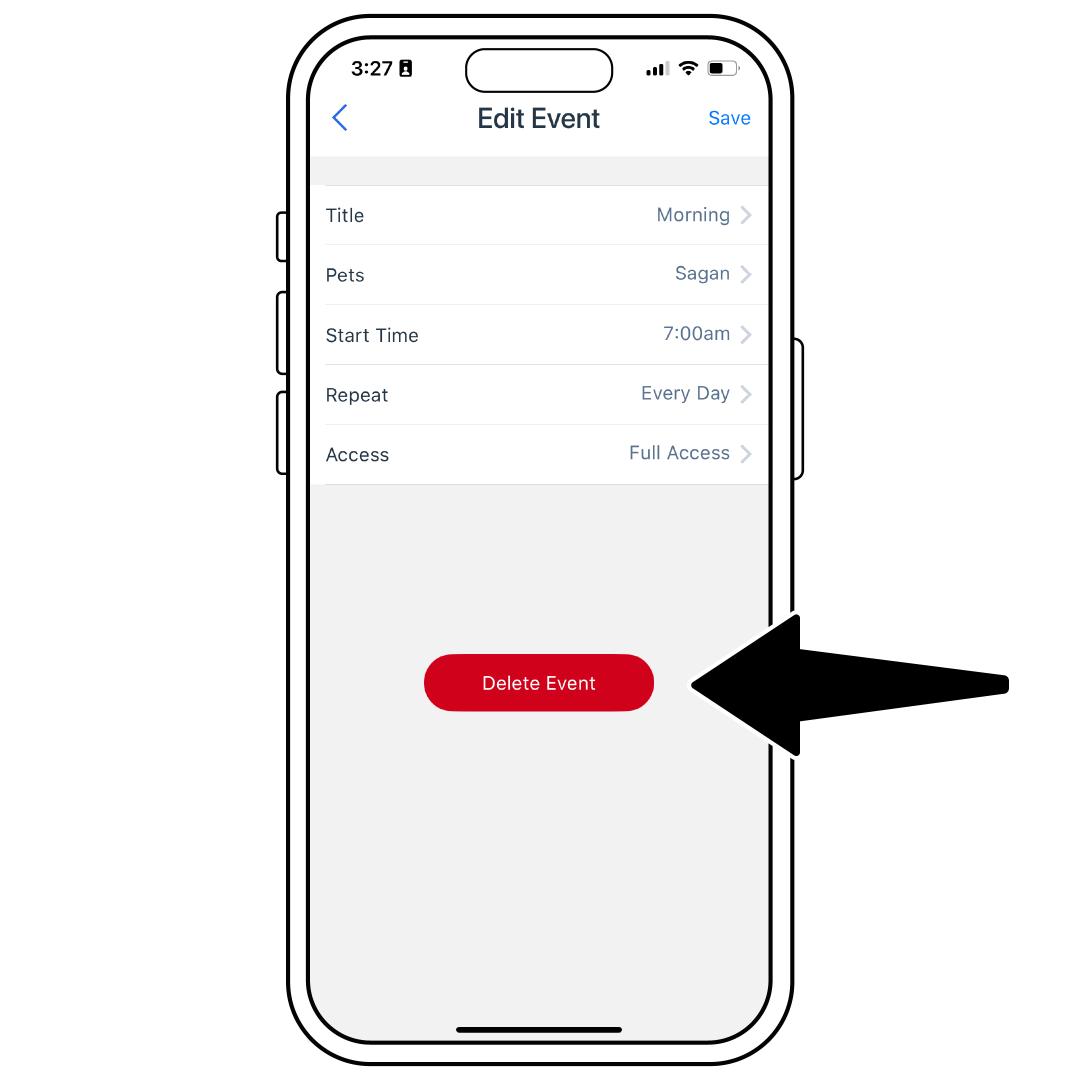
Tap Delete Event.
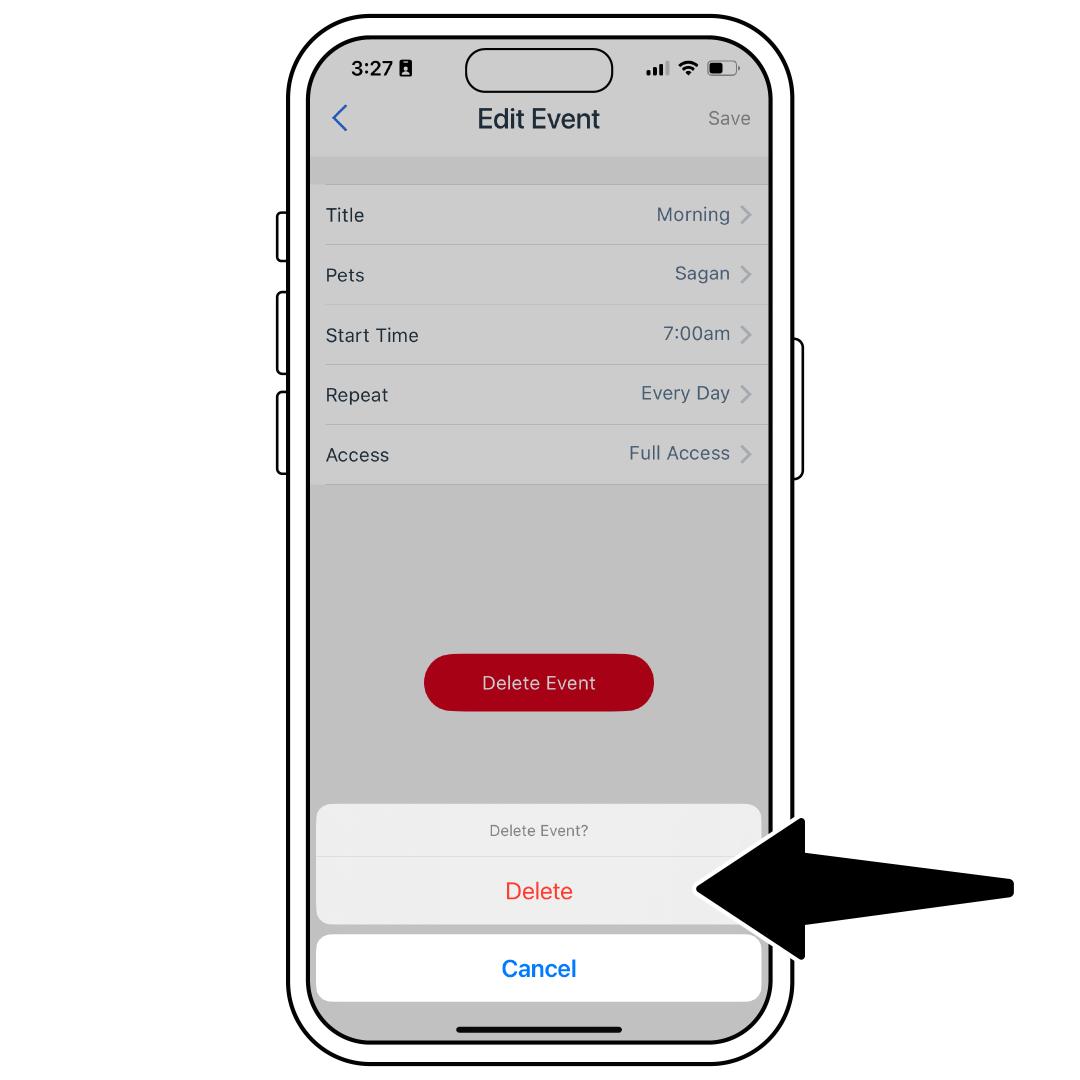
Confirm by selecting Delete.