How To Set Up and Connect My PetSafe® FreshFeed Refrigerated Pet Feeder to the App
Assemble the Feeder
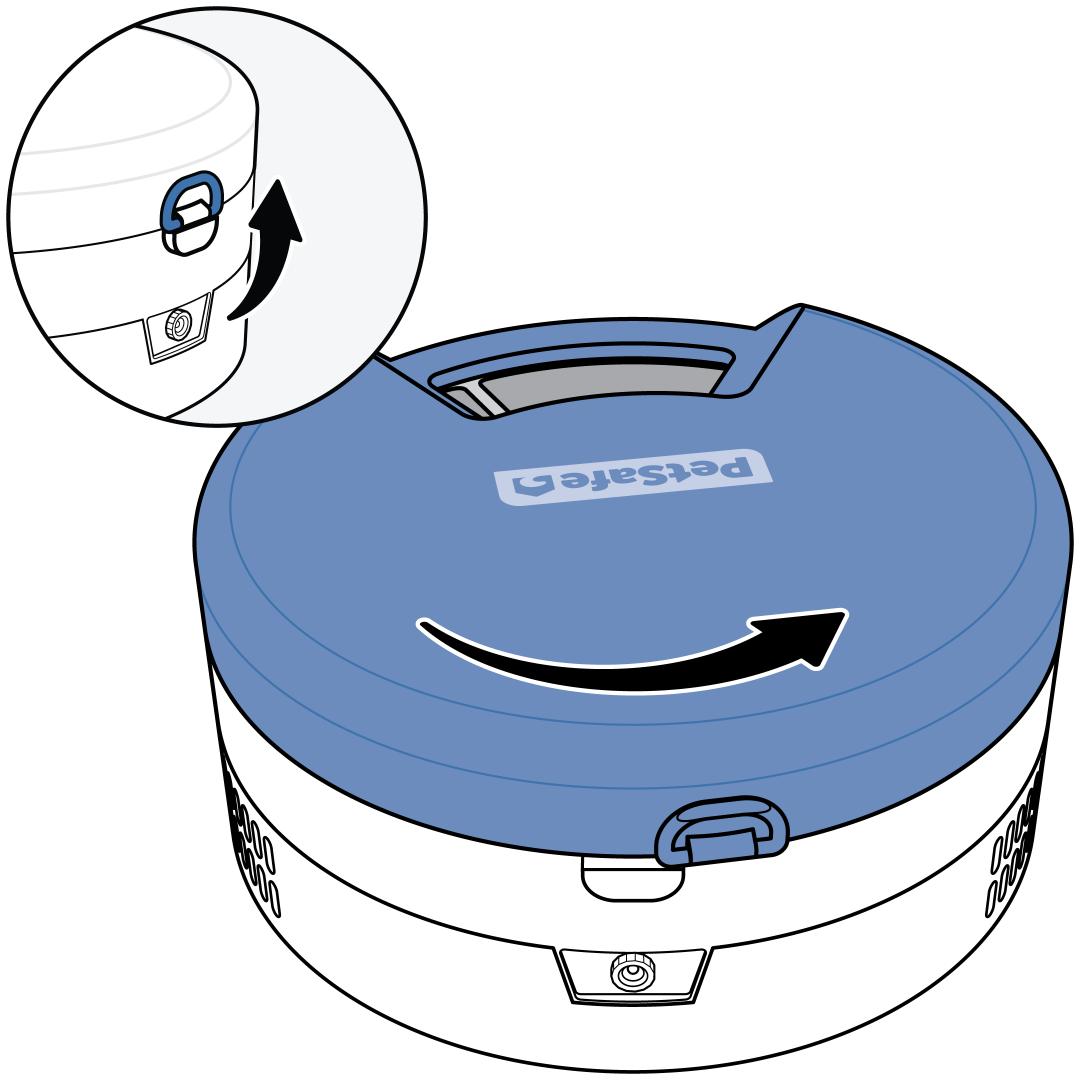
Remove the feeder lid. Lift the latch on the back of the feeder, then rotate the lid counterclockwise and lift it off.
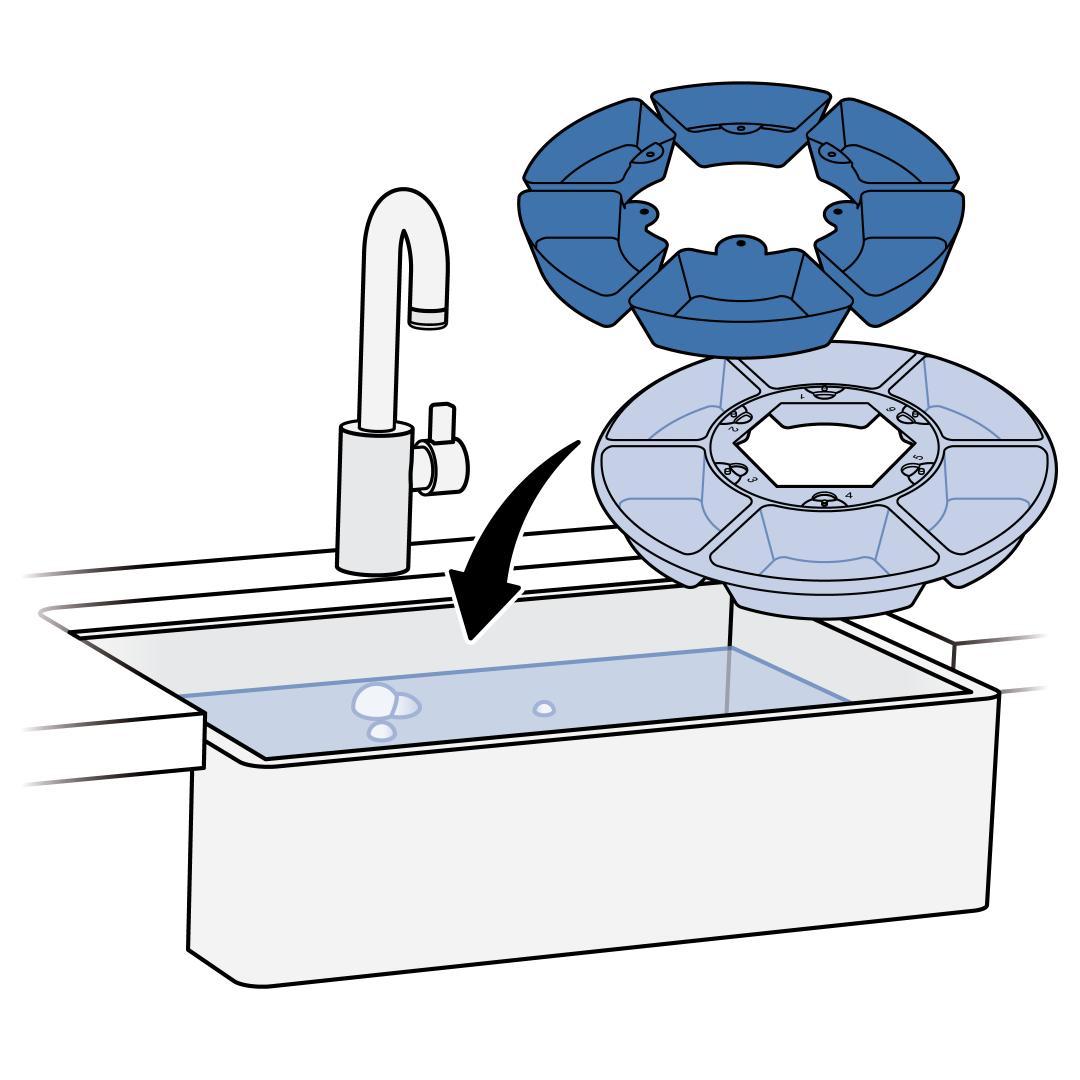
Remove the food tray and stainless steel inserts and wash them before first use. The food tray is not dishwasher safe; hand-wash only. The stainless steel inserts are dishwasher safe or can be hand-washed.
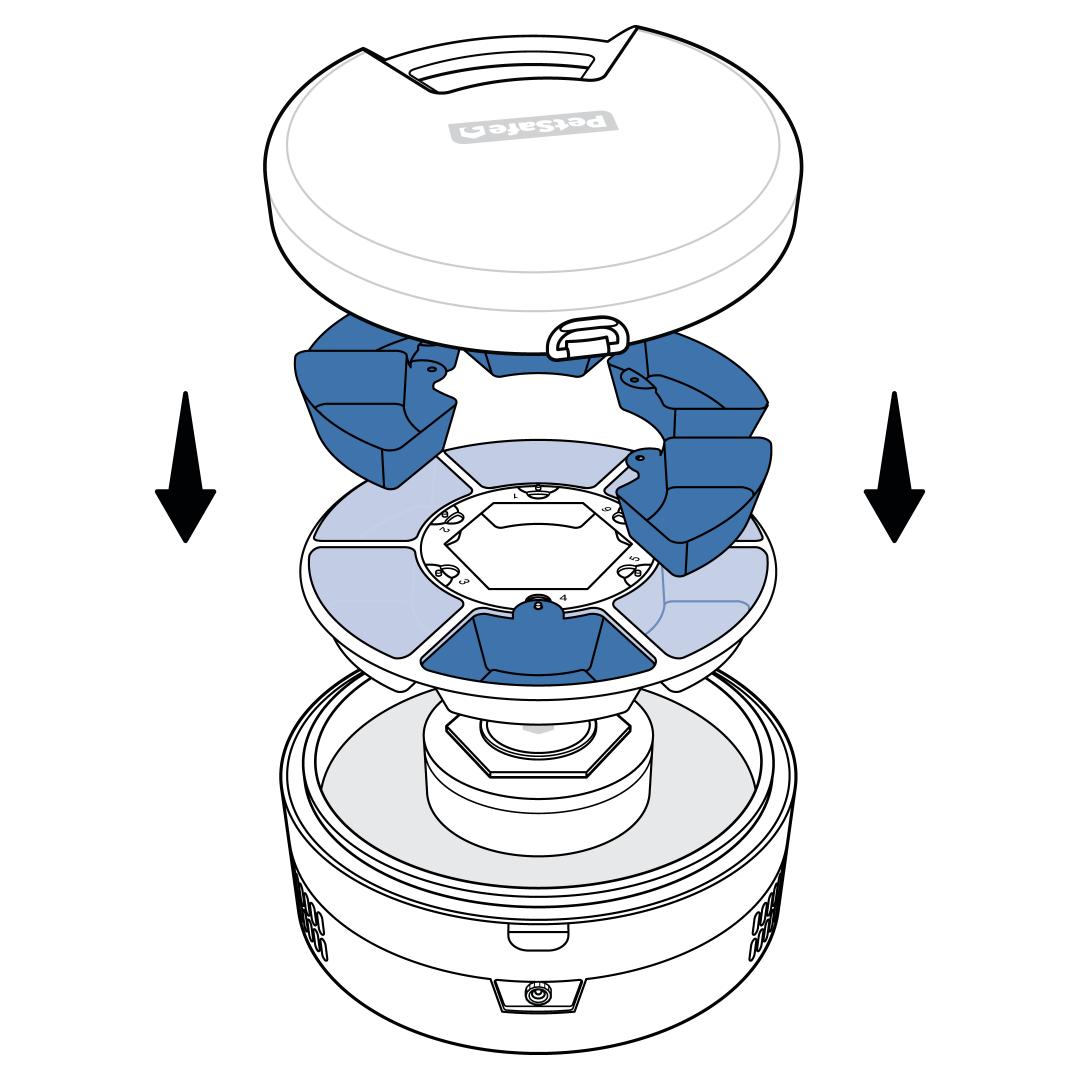
Replace the food tray in the feeder. If you would like to use the stainless steel inserts, place one in each food tray compartment.
- The stainless steel inserts are optional. If they are used, ensure Stainless Steel Inserts is toggled blue in the app's Settings so the proper temperature is maintained. For more information, visit How To Change the Settings on My PetSafe® FreshFeed Refrigerated Pet Feeder.
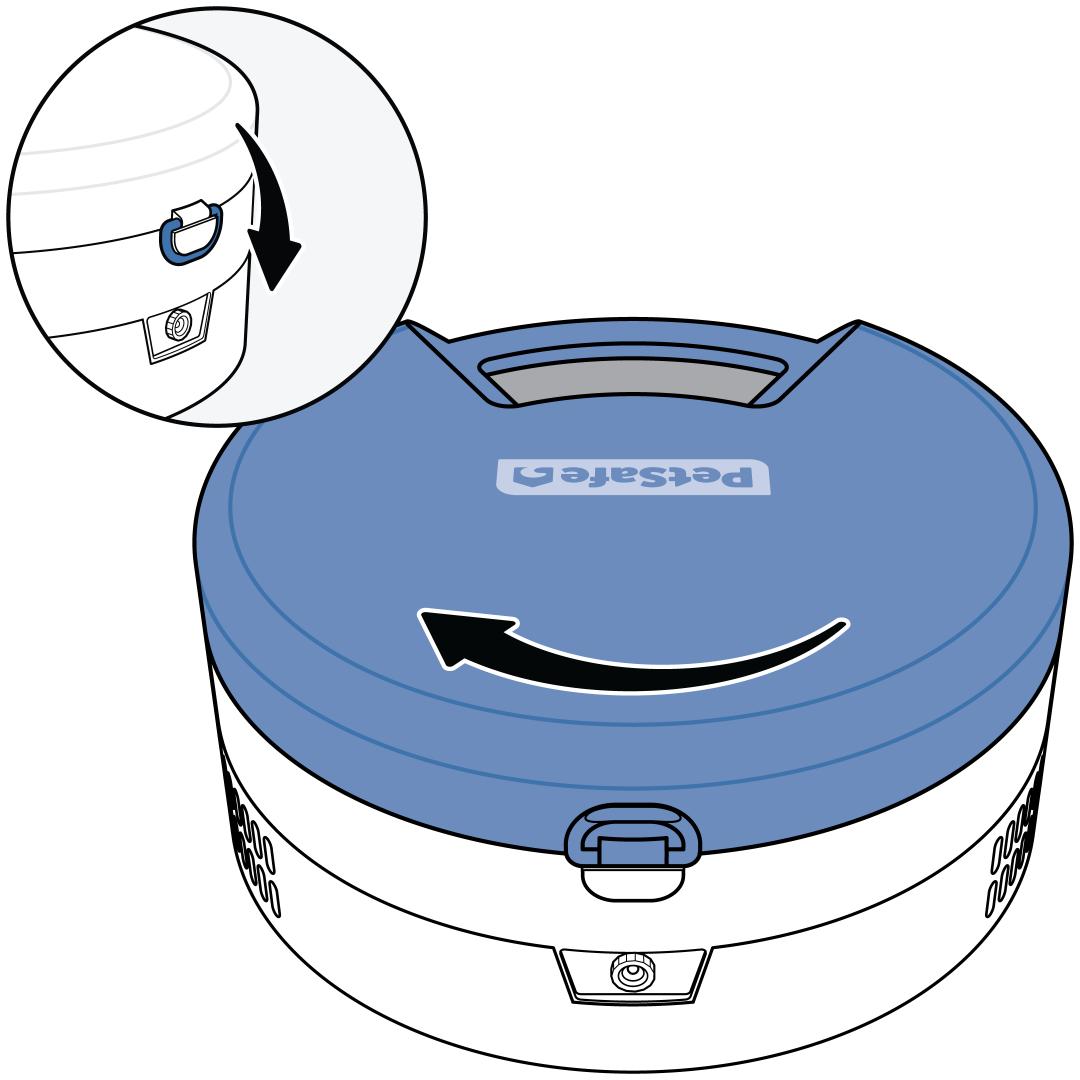
Replace the lid, rotating it clockwise, then close the latch.
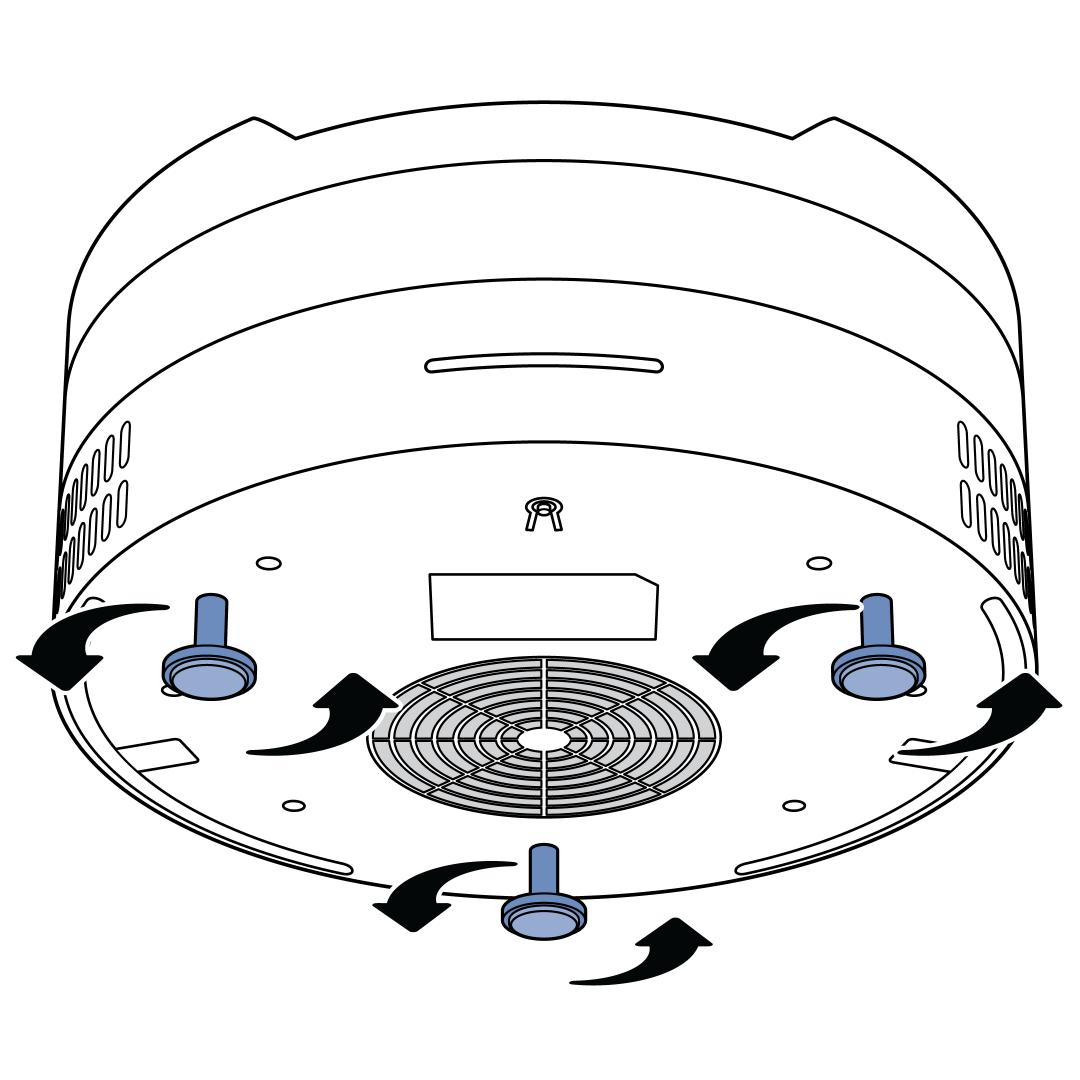
Place the feeder on a flat, smooth surface indoors. Adjust each leg by unscrewing it to ensure the feeder is level.
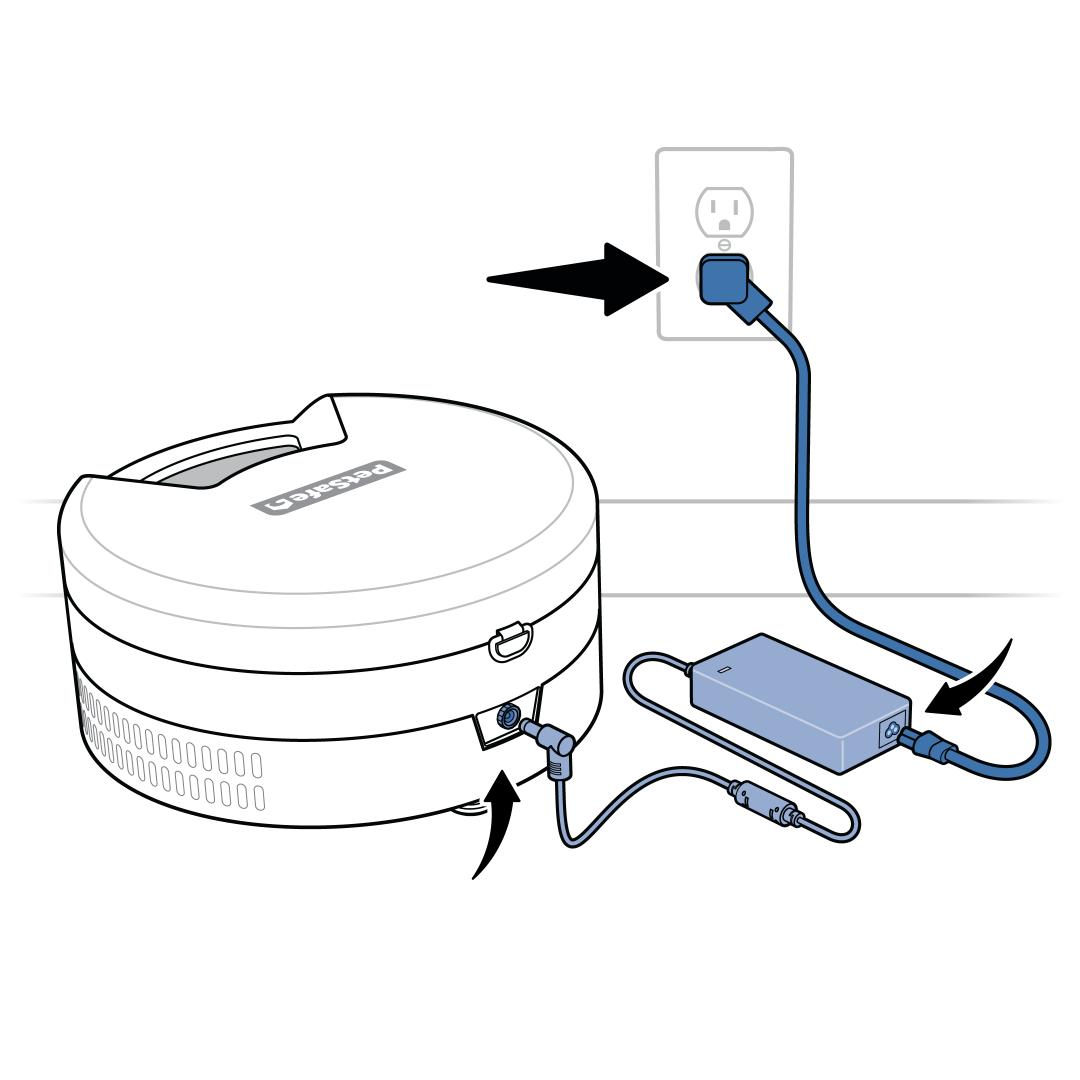
Assemble the power adaptor and plug it into a wall outlet. Connect the power adaptor to the feeder.
Make sure the cooling vents are not obstructed.
Do not use the FreshFeed at temperatures below 60°F (16°C) or above 85°F (29°C).
The feeder will beep and power on, indicating that it is ready to be connected to the app.
Connect to the App
Download the PetSafe® Pet Companion app. Create an account and log in. You will need a valid email address.
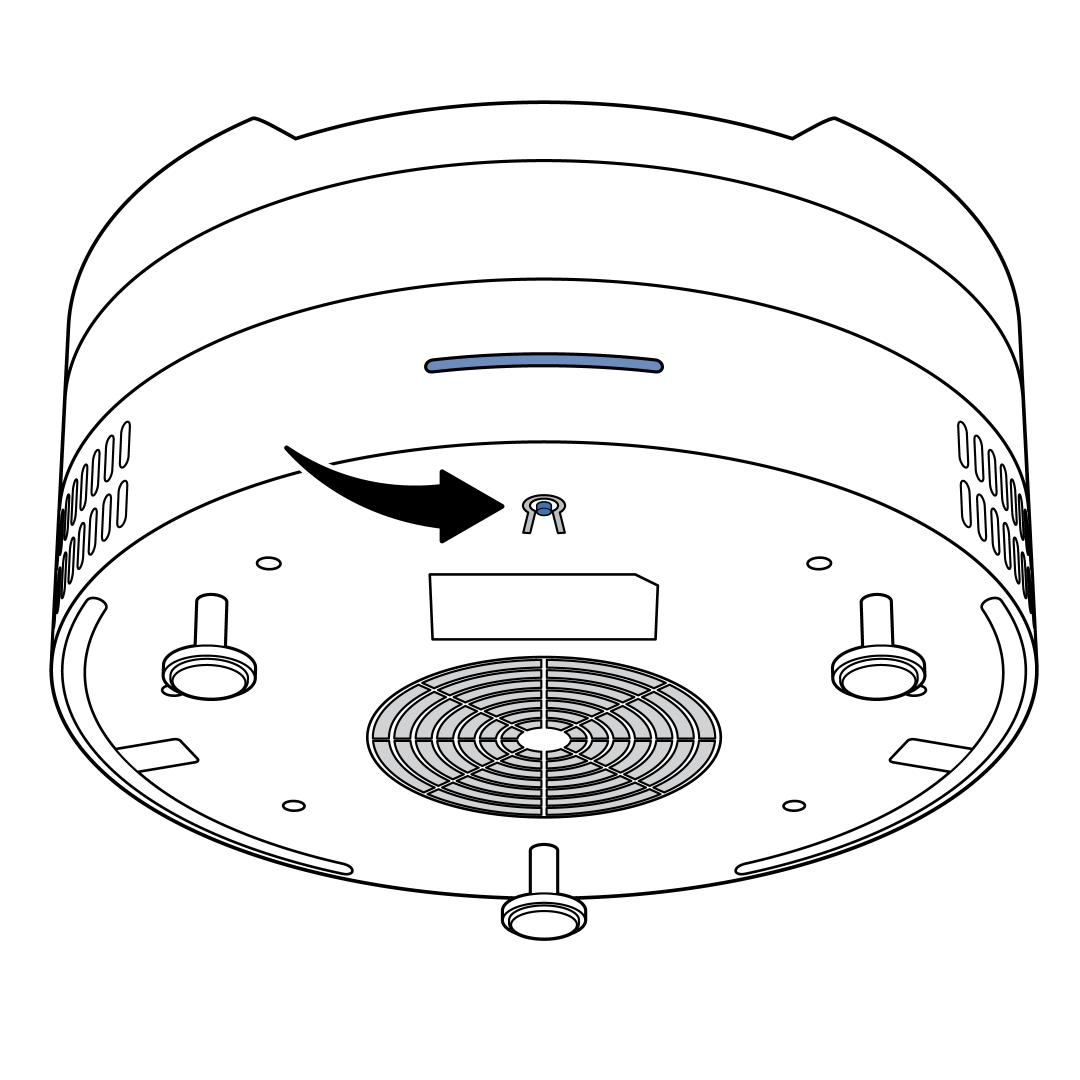
Press and hold the reset button under the front edge of the feeder until you hear a short double beep. The LED on the front of the feeder will start pulsing white, indicating it is ready to pair.
- The pairing mode will timeout after 10 minutes of no connectivity and the light will return to pulsing red. If this happens, press and hold the reset button again to reinitiate pairing.
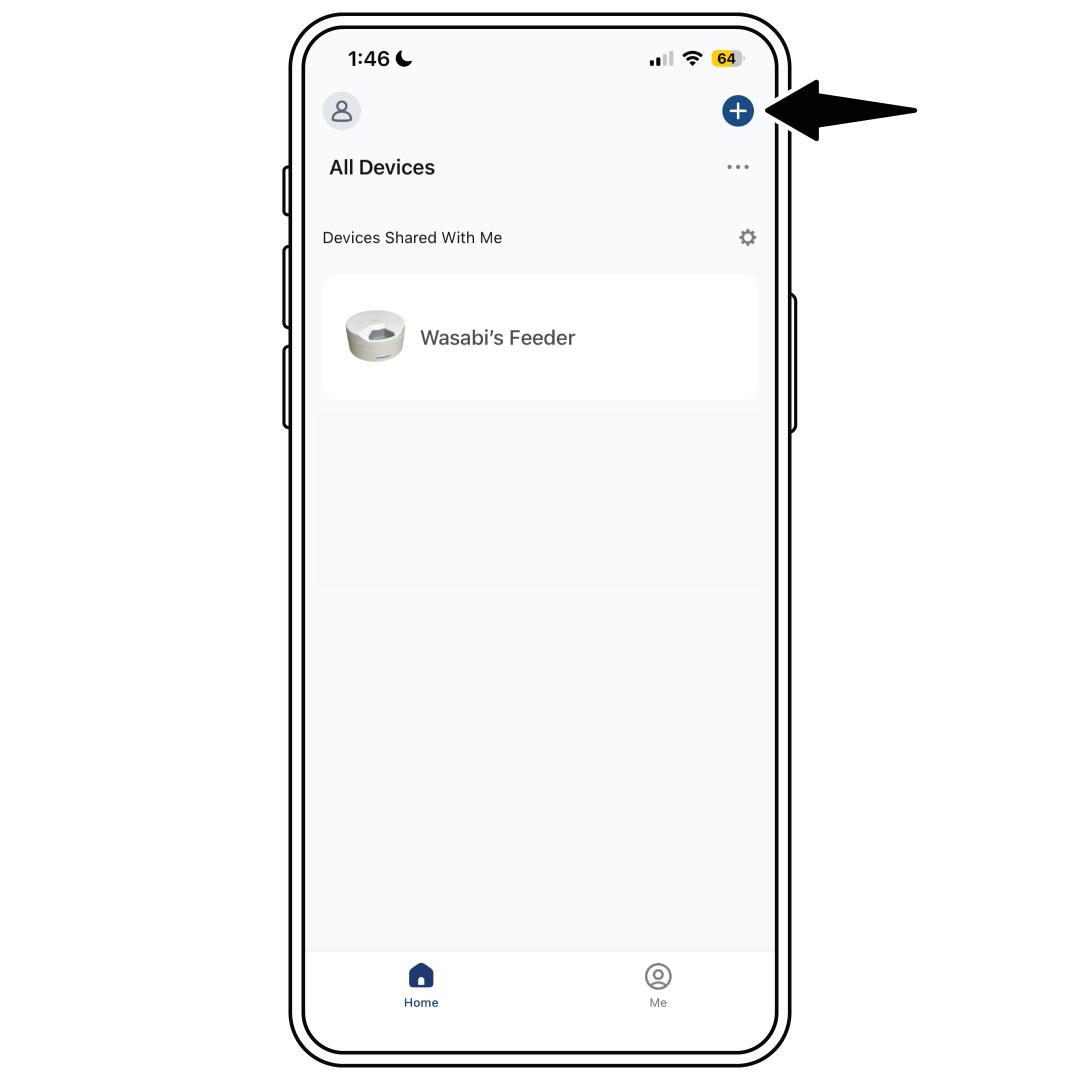
On the PetSafe® Pet Companion app, tap + to add a product and select the PetSafe® FreshFeed Refrigerated Pet Feeder from the list.
Follow the in-app prompts to connect the feeder to 2.4 GHz Wi-Fi.
The LED will glow solid blue when the feeder is successfully connected to the app and ready to use.
- If the feeder fails to connect, you will receive a notification in the app. Press and hold the reset button again to reinitiate pairing.
You are now ready to set up a feeding schedule. For more information, visit How To Add, Edit or Delete a Feeding Schedule on My PetSafe® FreshFeed Refrigerated Pet Feeder.