How To Edit or Delete a Safe Zone from My PetSafe® GPS Dog Tracker
Edit the Safe Zone

Open the My PetSafe® app and select GPS Tracker if prompted.
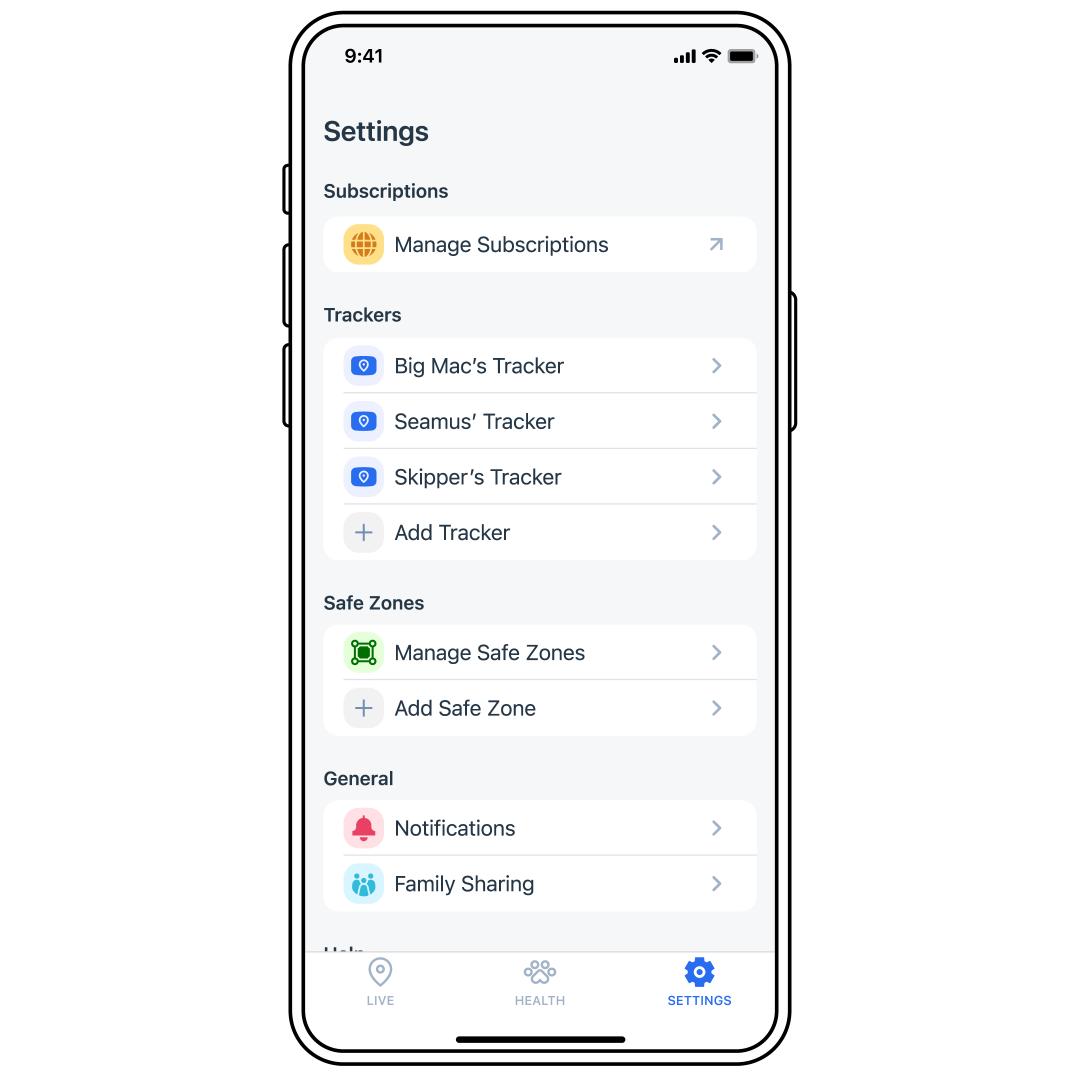
Tap SETTINGS at the bottom-right corner of the app screen, then Manage Safe Zones.
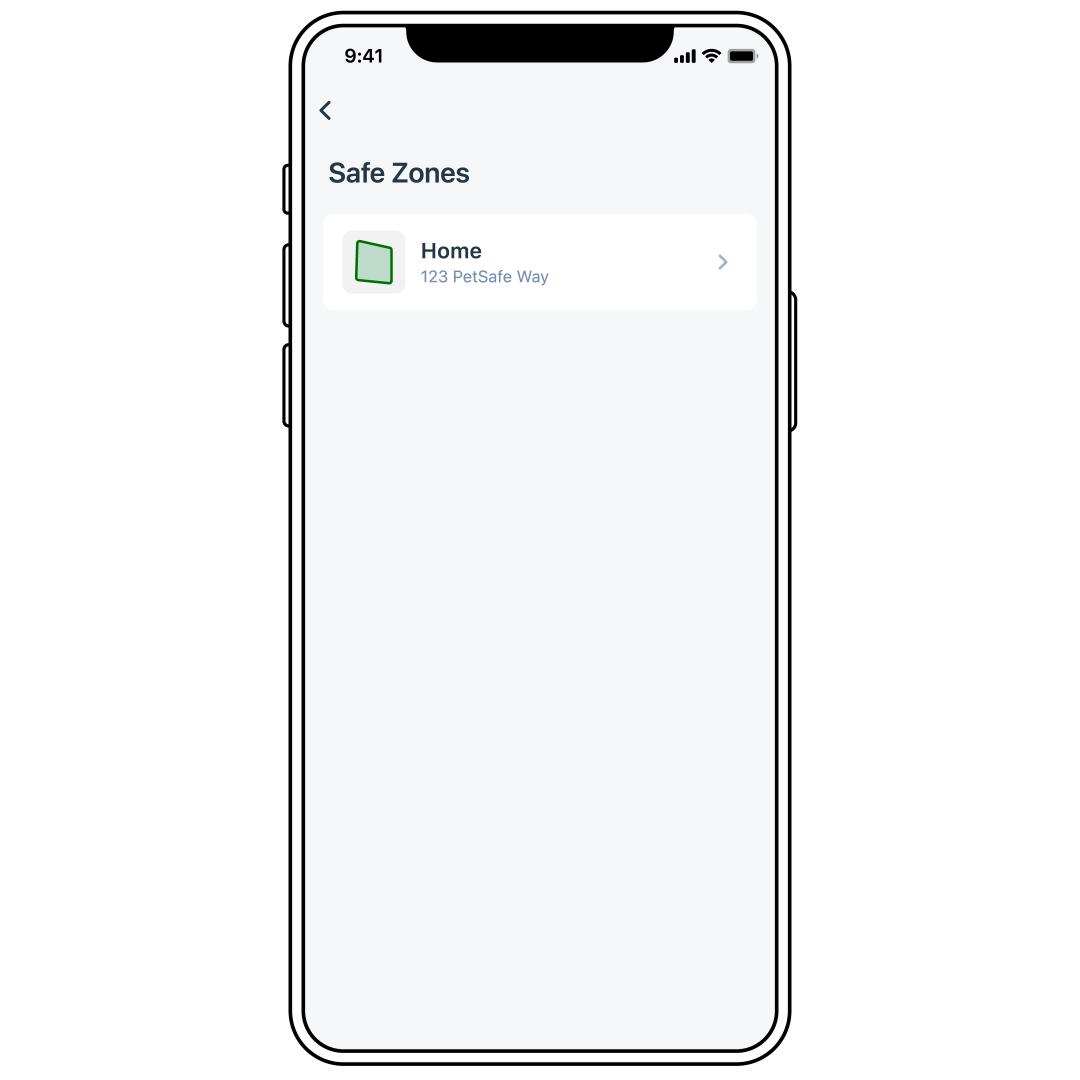
Tap on the name of the Safe Zone that you want to edit.
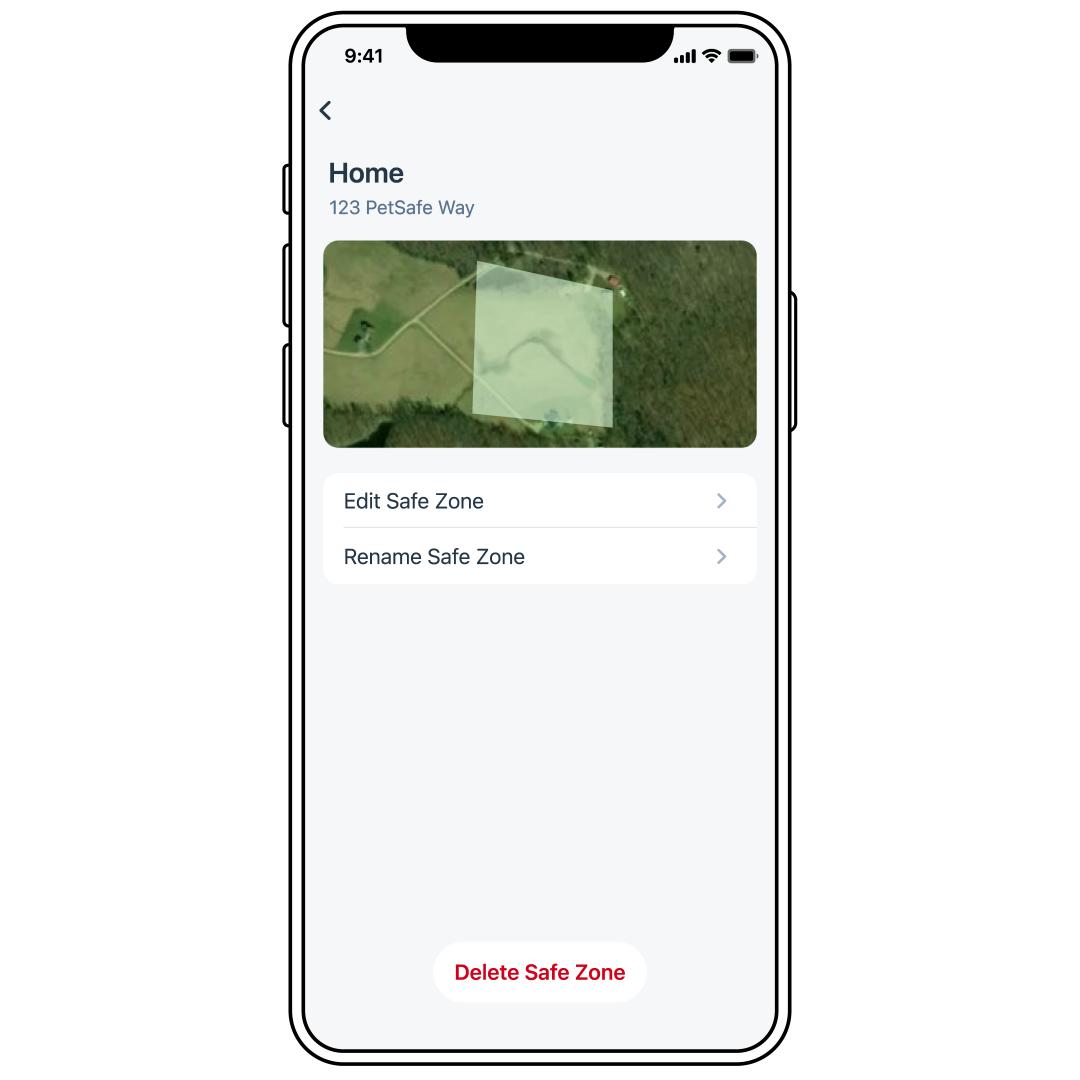
To rename it, select Rename Safe Zone. To edit, select Edit Safe Zone.
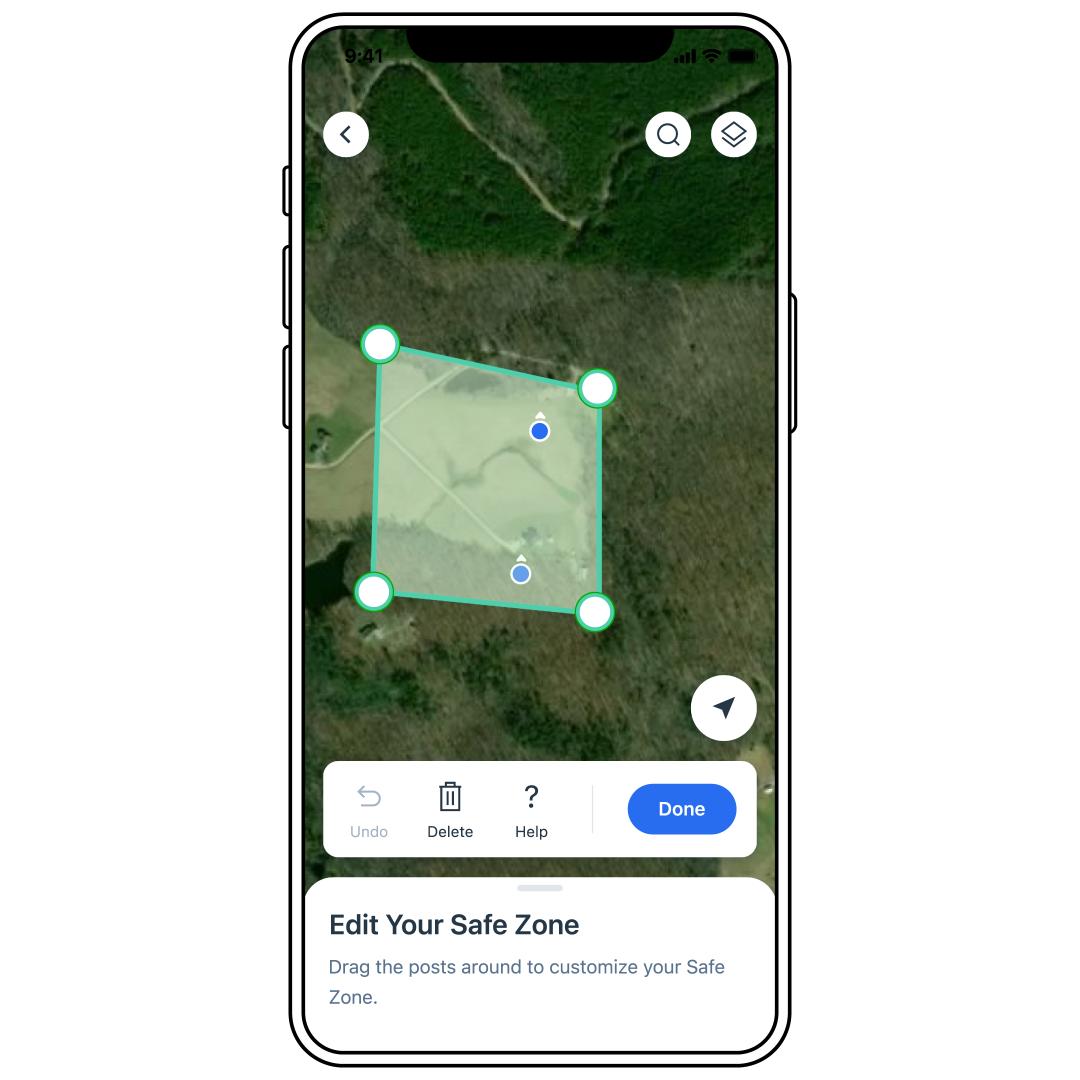
Tap, hold and drag the posts to change the shape. Delete a post by pressing and releasing it; this will remove it immediately.
- Use the Undo icon to reverse the last action.
- Use the Delete icon (trash can) to remove all posts.
While editing, keep in mind that:
- If your dog stays indoors, keep your home and any areas they can roam freely inside a Safe Zone to avoid false notifications.
- At least 4 posts are needed to complete a Safe Zone, and no more than 16 posts are allowed. Keep the Safe Zones simple for the most accurate notifications.
- You can create more than one Safe Zone, but Safe Zones cannot overlap or be placed within 50 feet (15 m) of each other as this can affect alerts. When one Safe Zone is placed, it appears green on the map while you build additional Safe Zones.
- The lines within the Safe Zone cannot overlap.
- Placing the Safe Zone within trees and buildings does not affect its function.
- A Safe Zone must be at least 1/4 acre but can be as large as needed.
- Any Safe Zones created will be applied to all Trackers on your account. This includes any Safe Zones created for a PetSafe® GPS Cat Tracker on your account.
- Once a Safe Zone is created, it is active. There is no way to disable one, only delete it. For help deleting a Safe Zone, follow the steps below.
Tap Done to complete.
Delete the Safe Zone
Once a Safe Zone is deleted, you will no longer be notified if your pet leaves that area. Additionally, a deleted Safe Zone cannot be reactivated. To create a new Safe Zone, visit How To Add a Safe Zone for My PetSafe® GPS Dog Tracker.
All other Safe Zones will continue to function as normal.
Open the My PetSafe® app and select GPS Tracker if prompted.
Tap SETTINGS at the bottom-right corner of the app screen, then Manage Safe Zones.
Tap on the name of the Safe Zone that you want to edit.
Select Delete Safe Zone at the bottom of the screen.
Press Delete to confirm.
- If you need any assistance with adding a new Safe Zone, visit How To Add a Safe Zone for My PetSafe® GPS Dog Tracker.