Dashboard Features - PetSafe® GPS Dog Tracker
Live Dashboard
What’s on the Live Dashboard?
- See the pet’s real-time location on the map when live tracking and the Tracker is out of Base Sync range
- View Tracker Status
- For more information, visit Tracker Statuses, Base Sync and LTE - What Do They Mean? - PetSafe® GPS Dog Tracker?
- View GPS and LTE signal strength when live tracking
- Monitor battery level and charging status
- Quickly view the top Health Stats and access the full Health Dashboard
- Ability to activate Find My Pet mode
View the Live Dashboard

Open the My PetSafe® app and choose GPS Tracker from the product list if prompted.
- In most cases, the app will open directly to the Live Dashboard.
If Live Dashboard is not visible on the screen, tap LIVE in the bottom left corner of the app screen.
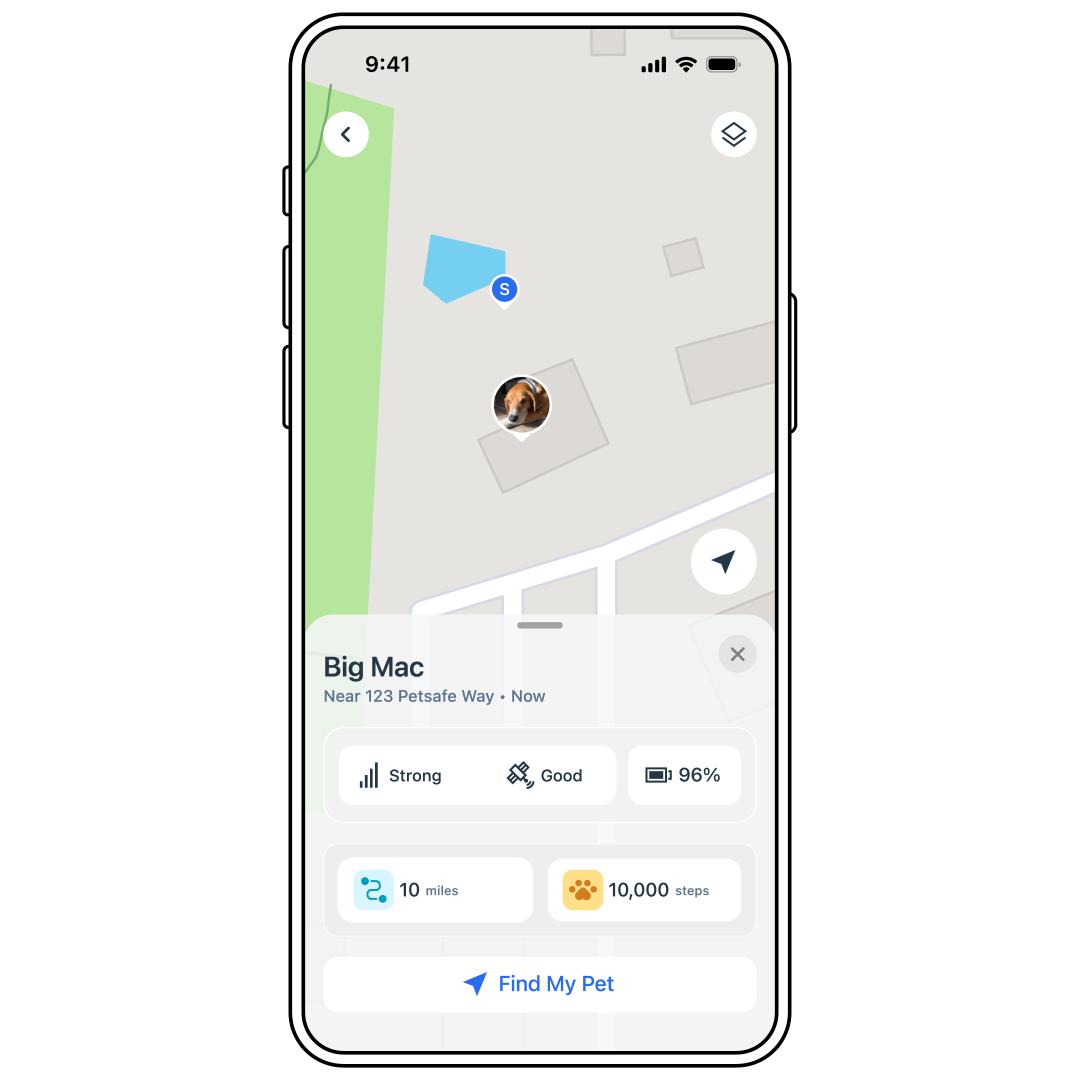
Tap on the desired Tracker to view the expanded pet information.
Health Dashboard
What’s on the Health Dashboard?
Barking: Number of barking events and when they occurred
Distance: Distance traveled in miles
- In Base Sync, you will not see distance.
Steps: Number of steps taken
Rest: Amount of time with no significant movement
View the Pet’s Health Stats
Open the My PetSafe® app and choose GPS Tracker from the product list if prompted.
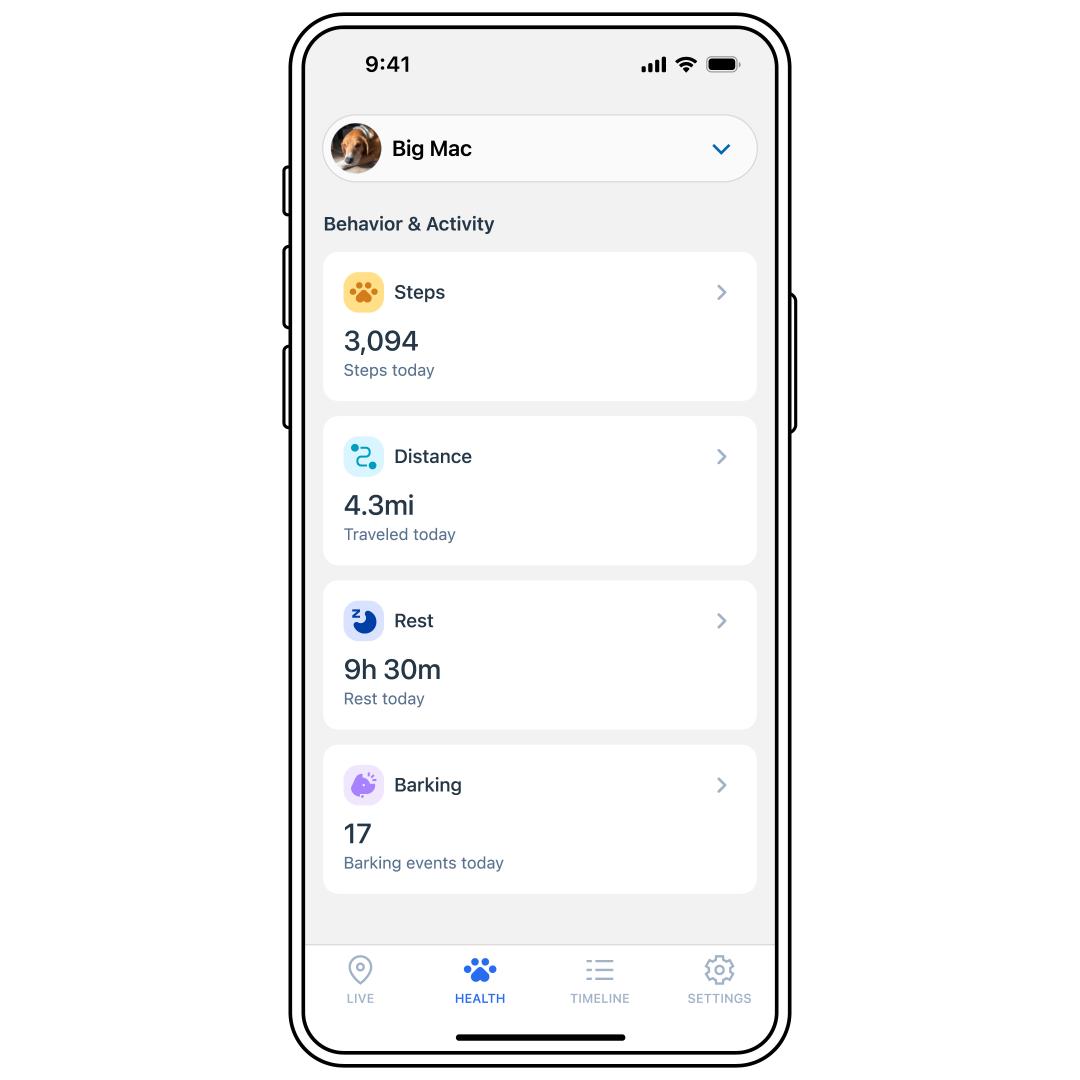
Tap HEALTH at the bottom of the screen.
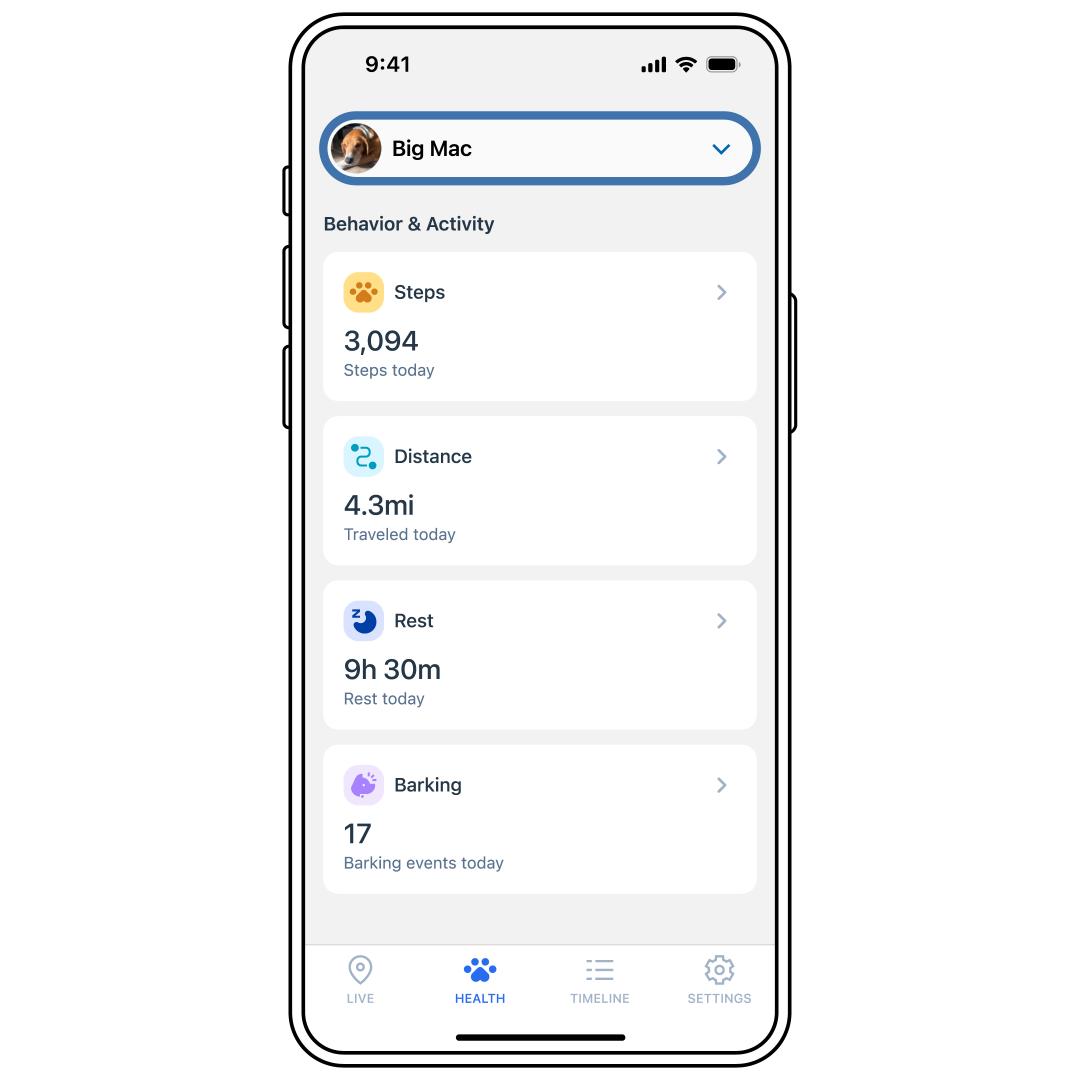
Tap the pet selector drop-down at the top of the list and select the desired pet.
A preview of all the pet’s Health Stats is shown. Tap on a Health Stat to see more detail.
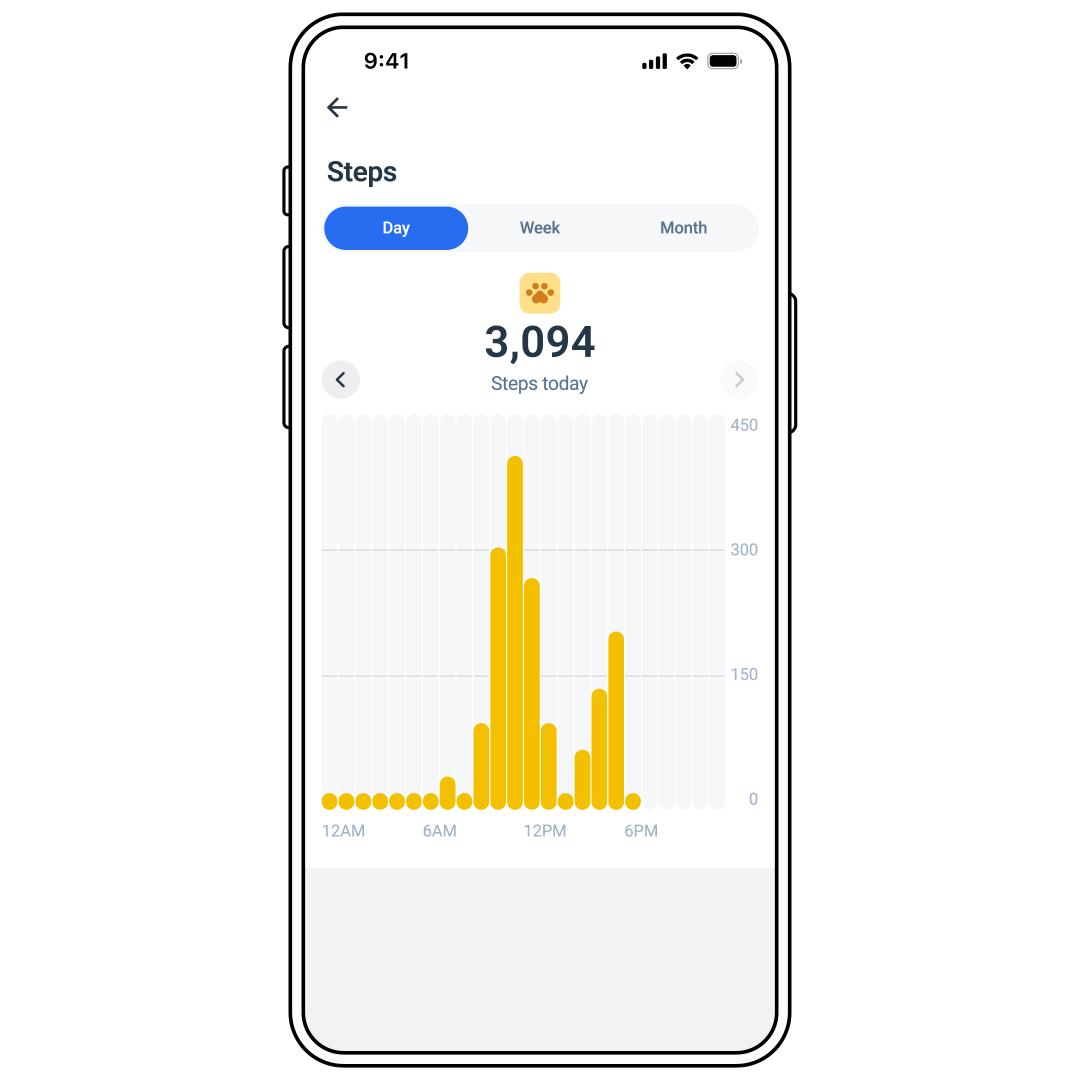
Select Day, Week or Month at the top of the graph to change the view. Data is stored for 30 days.
Timeline Dashboard
What’s on the Timeline Dashboard?
You can view Safe Zone history, displayed as events on the Timeline.
An event occurs when the GPS Dog Tracker leaves and re-enters a Safe Zone, including the time spent outside the zone.
Timeline events are stored for 30 days and are not editable or able to be deleted.
You can also view stomping grounds, a heat map that shows where your dog spent the most time that day.
View Timeline
Open the My PetSafe® app and choose GPS Tracker from the product list if prompted.
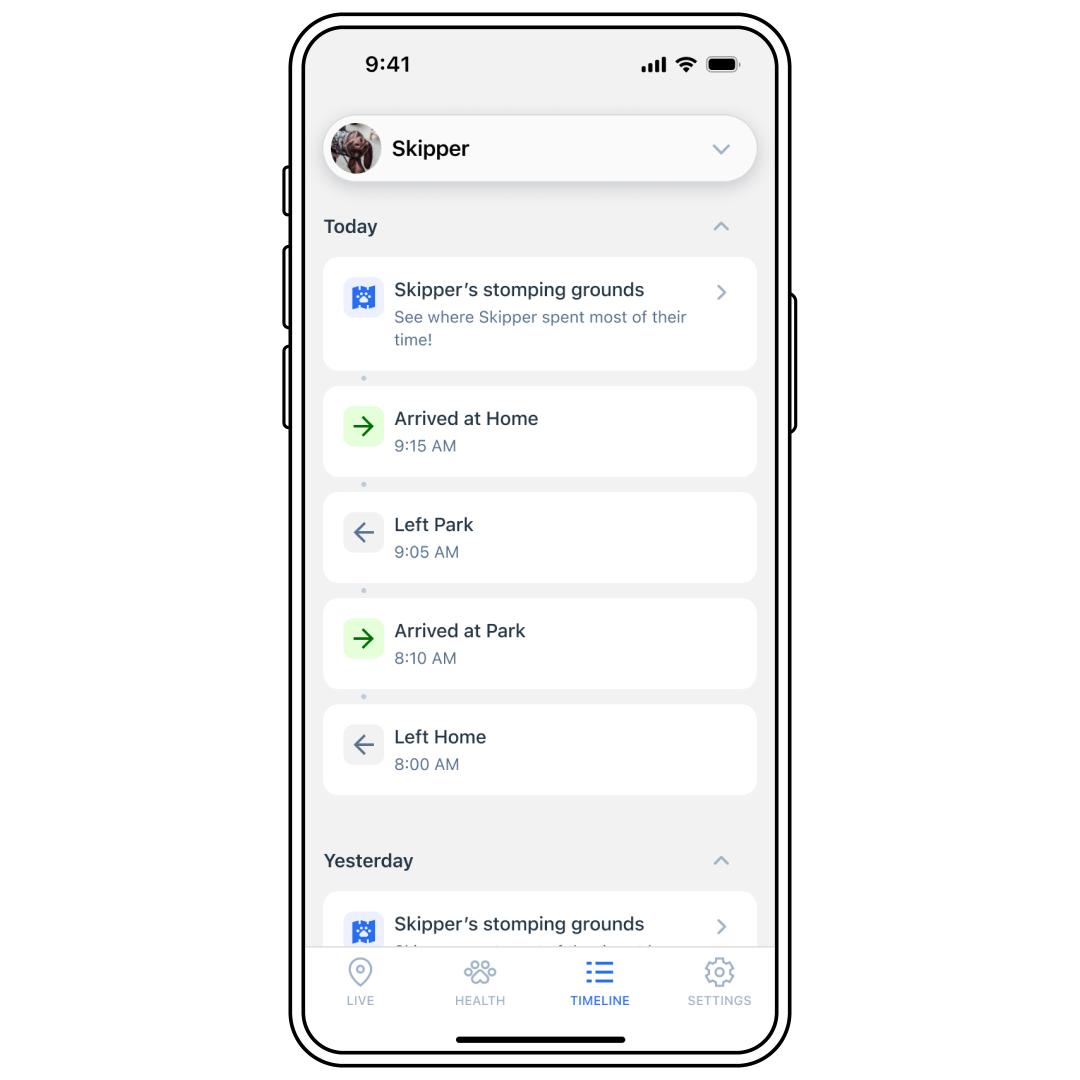
Tap TIMELINE at the bottom of the app screen.
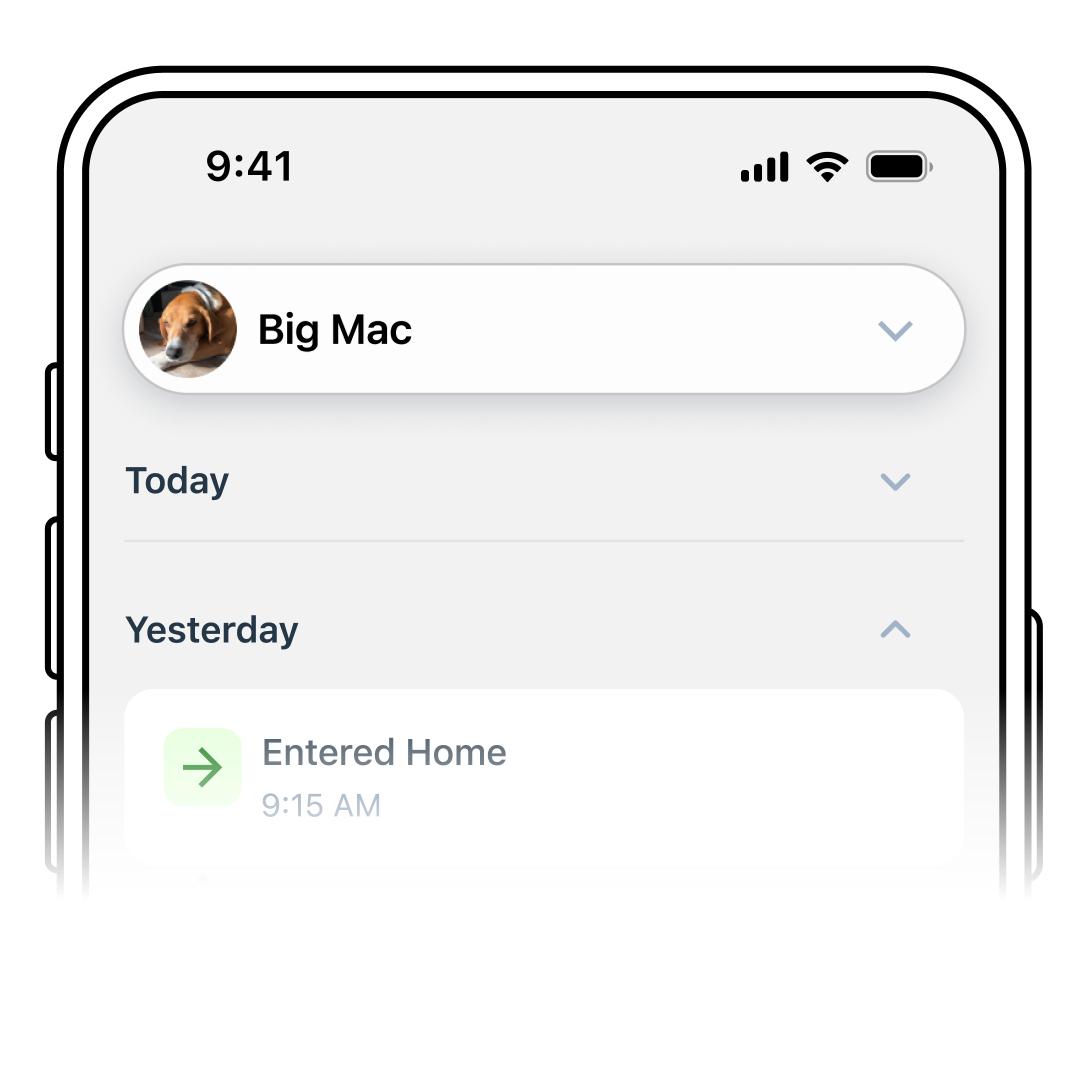
Tap a day (Today, Yesterday, etc.) to see the expanded view.
Scroll to see the details of each event.
To view a different Tracker’s history, use the pet selector drop-down menu at the top to select another pet.
Settings Dashboard
What’s on the Settings Dashboard?
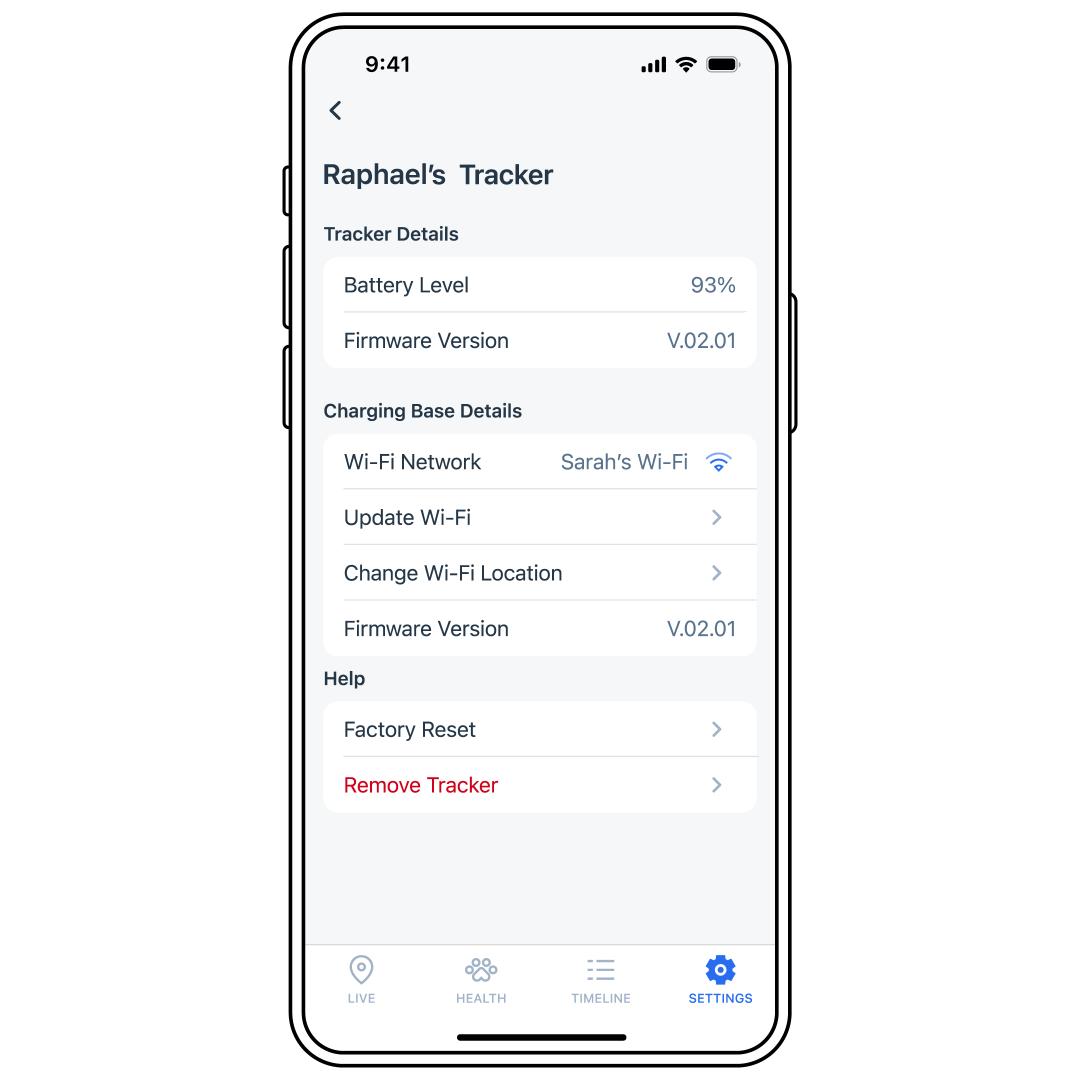
- Tracker name
- Battery level (also available from the Live Dashboard)
- Charging Base and Tracker Firmware Version
- Wi-Fi Network: the network the Charging Base is currently connected to and the option to update it
- Ability to change the Wi-Fi location
- Tracker Tips and Help: helpful tips and answers for common questions
- Factory Reset: guided walkthrough for a factory reset
- Remove Tracker: remove this Tracker from the app
View Settings Dashboard
Open the My PetSafe® app and choose GPS Tracker from the product list if prompted.
Tap SETTINGS at the bottom of the app screen.
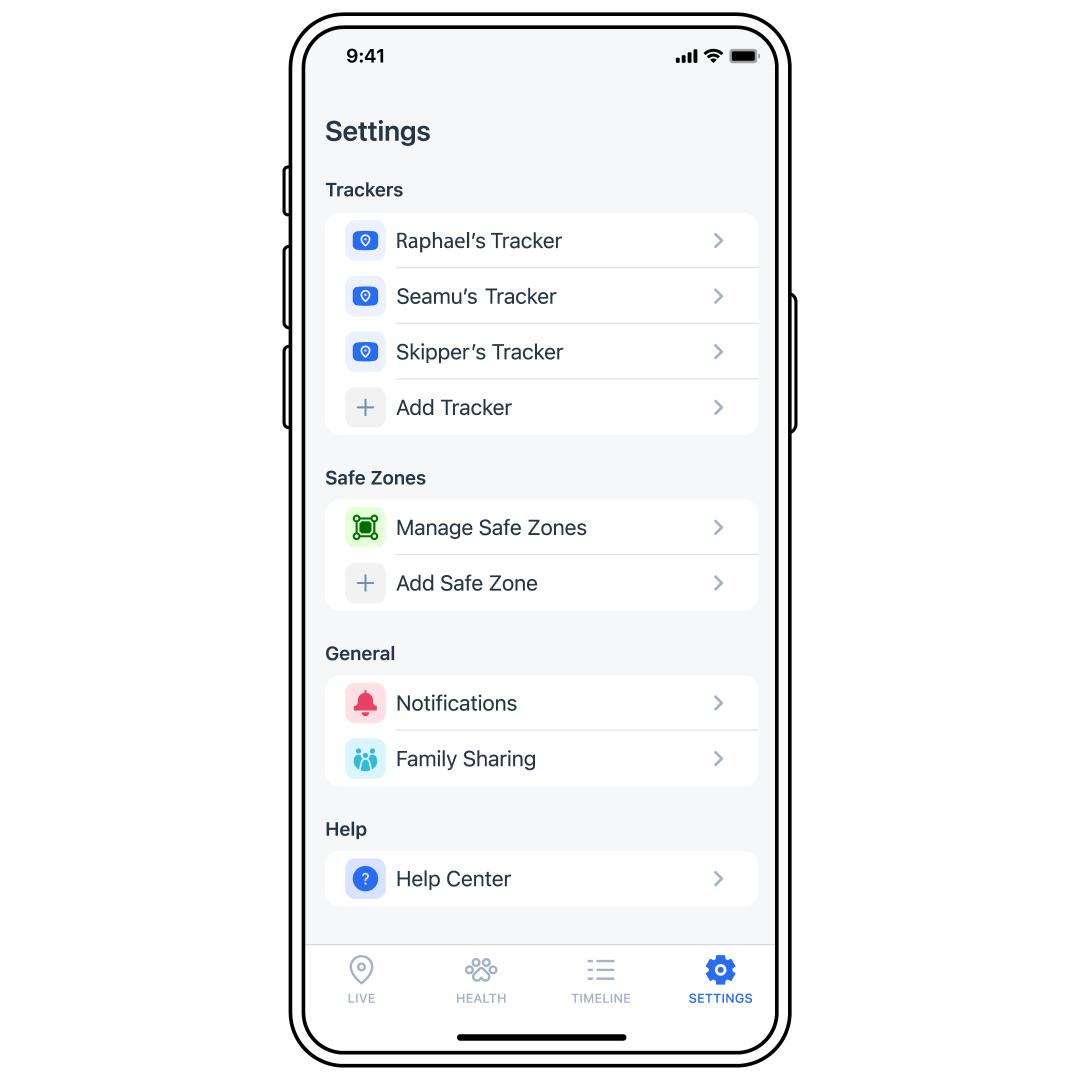
Select the desired Tracker from the list.