Collar Is Not Correcting - PetSafe® GPS Customizable Dog Fence
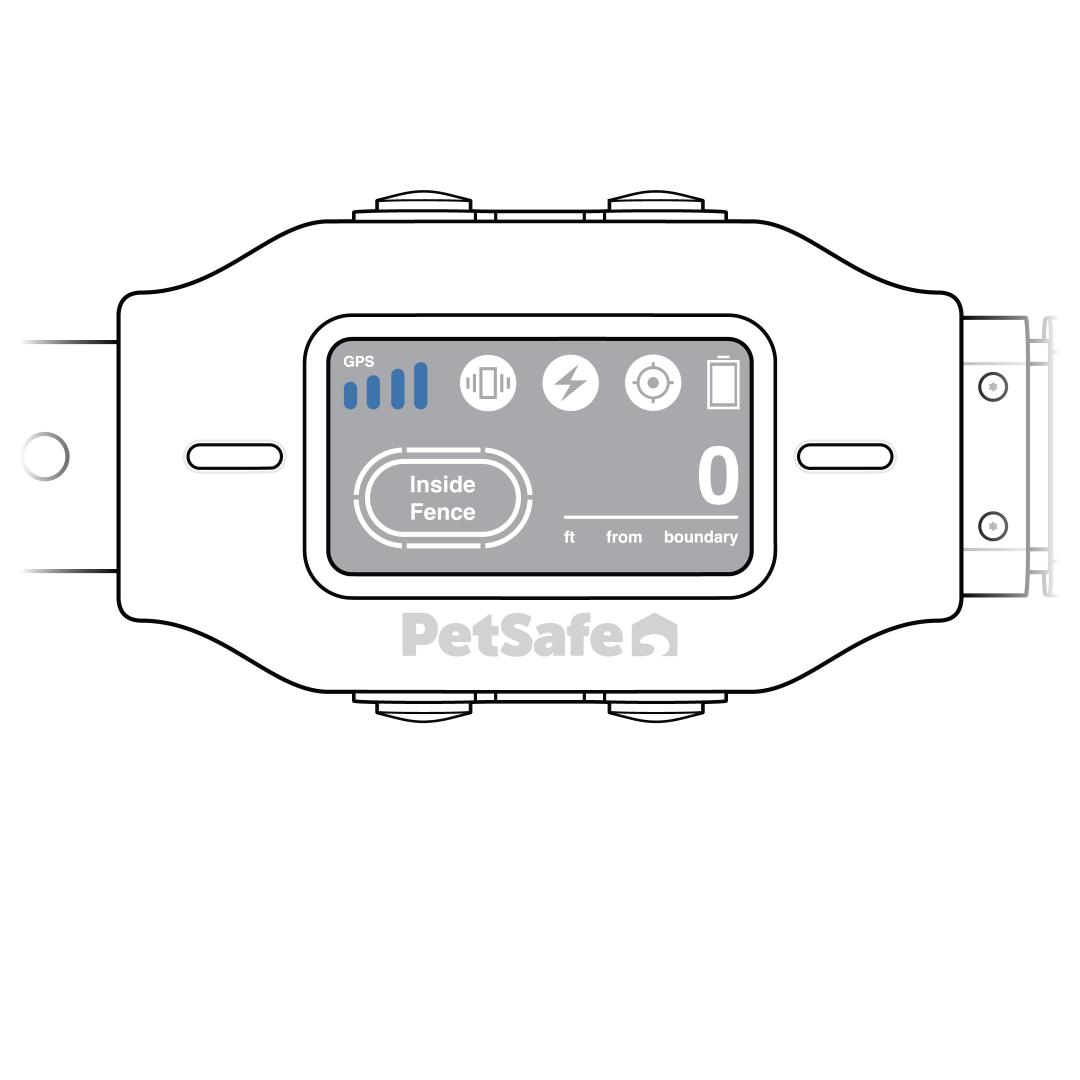
Check the GPS signal strength.
- Use the collar in an open outdoor area with limited tree coverage.
- Avoid standing near buildings, trees, covered patios or other sources of environmental interference.
- Poor weather conditions and cloudy skies can also interfere with the GPS connection.
- Confirm the collar has acquired a GPS signal before use. If it has not, visit Will Not Acquire GPS Signal - PetSafe® GPS Customizable Dog Fence.
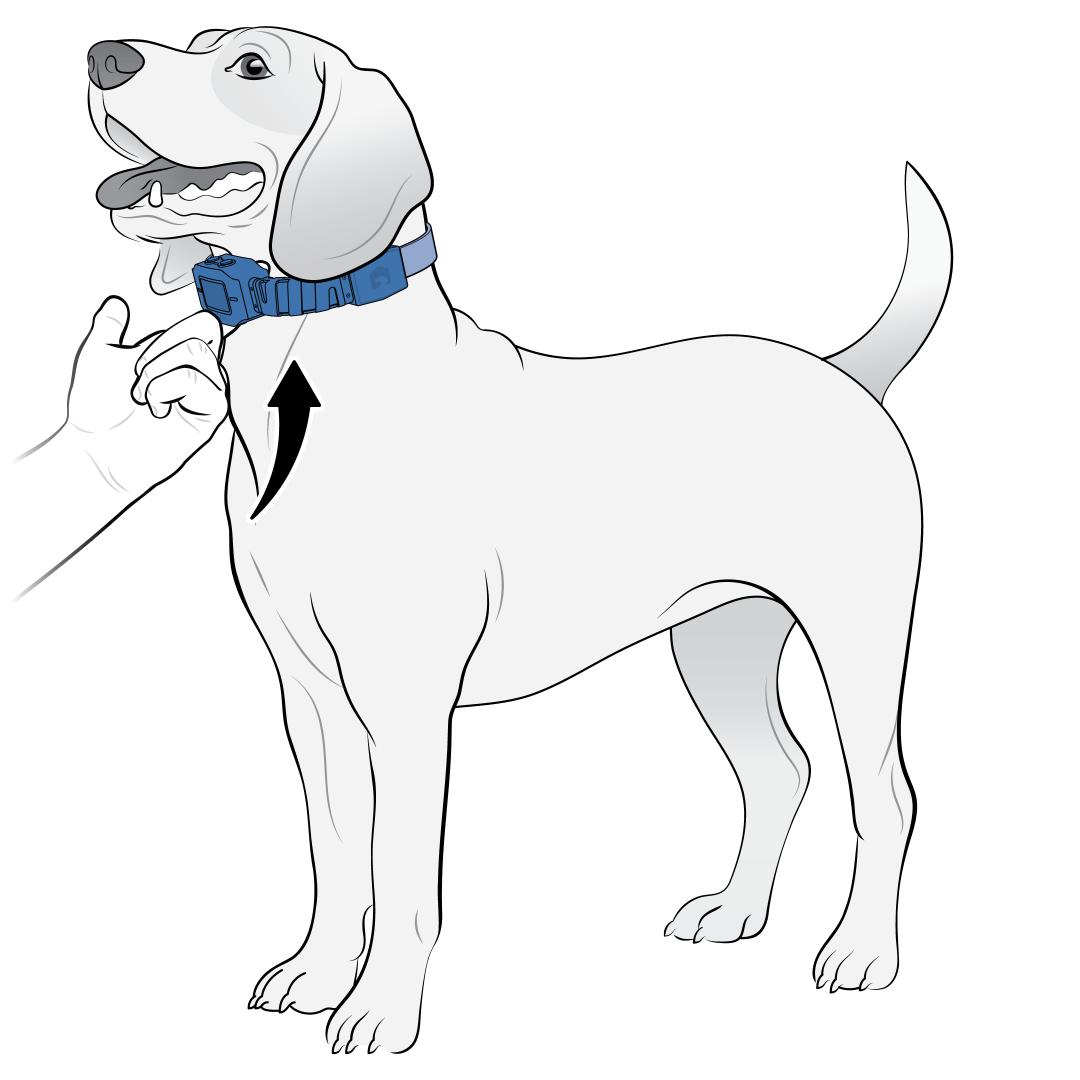
Check the collar fit.
- With your dog standing, position the collar to have the Contact Points on the side of the neck, touching the skin and the antenna on the top of their neck.
- You should only be able to fit one finger between the Contact Point and your dog’s skin.
- For more information on fitting the collar, visit How To Fit My PetSafe® GPS Customizable Dog Fence Collar.
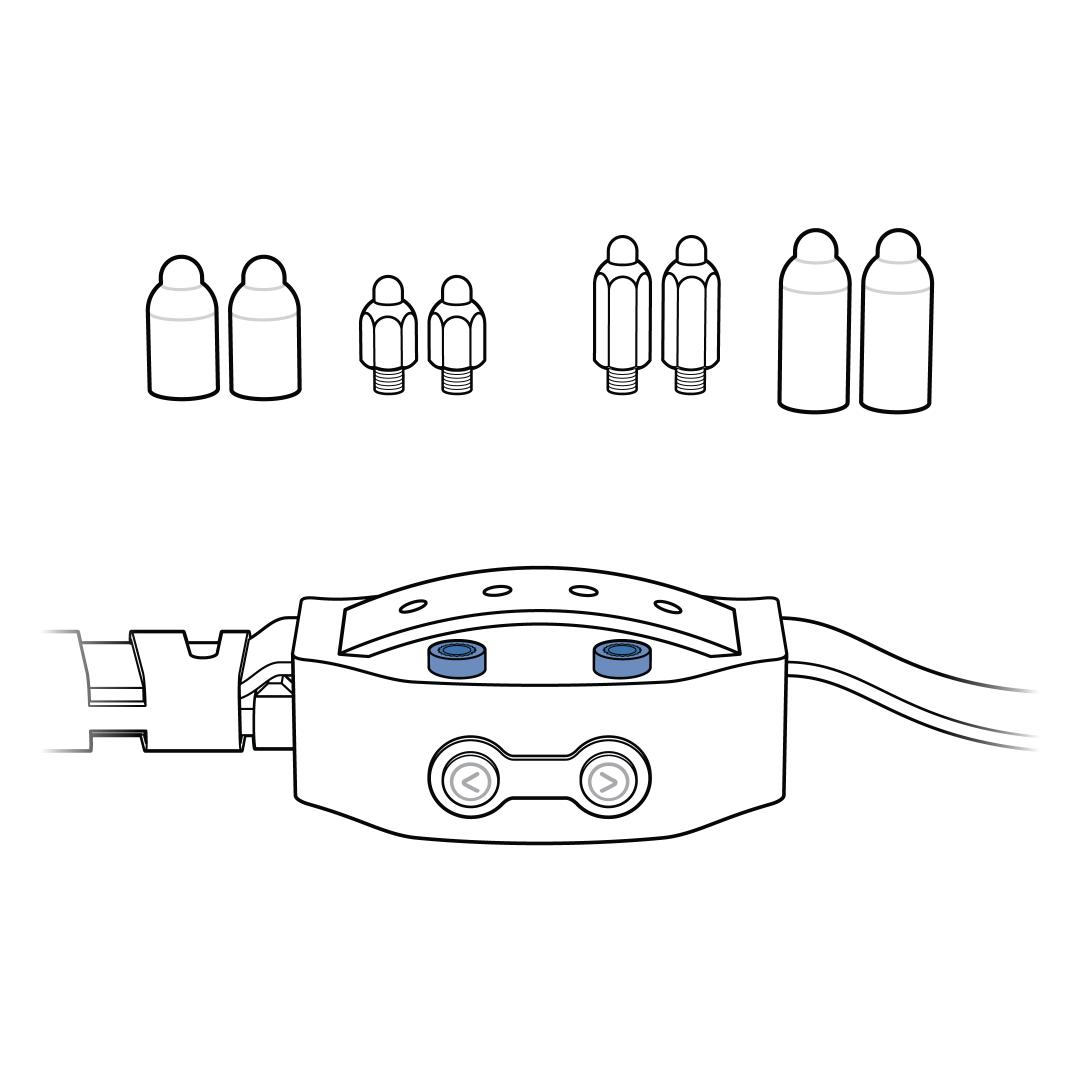
Check the Contact Points.
- The short Contact Points are appropriate for most dogs.
- Use the long Contact Points if your dog has long or thick fur that prevents the short Contact Points from reaching your dog’s skin.
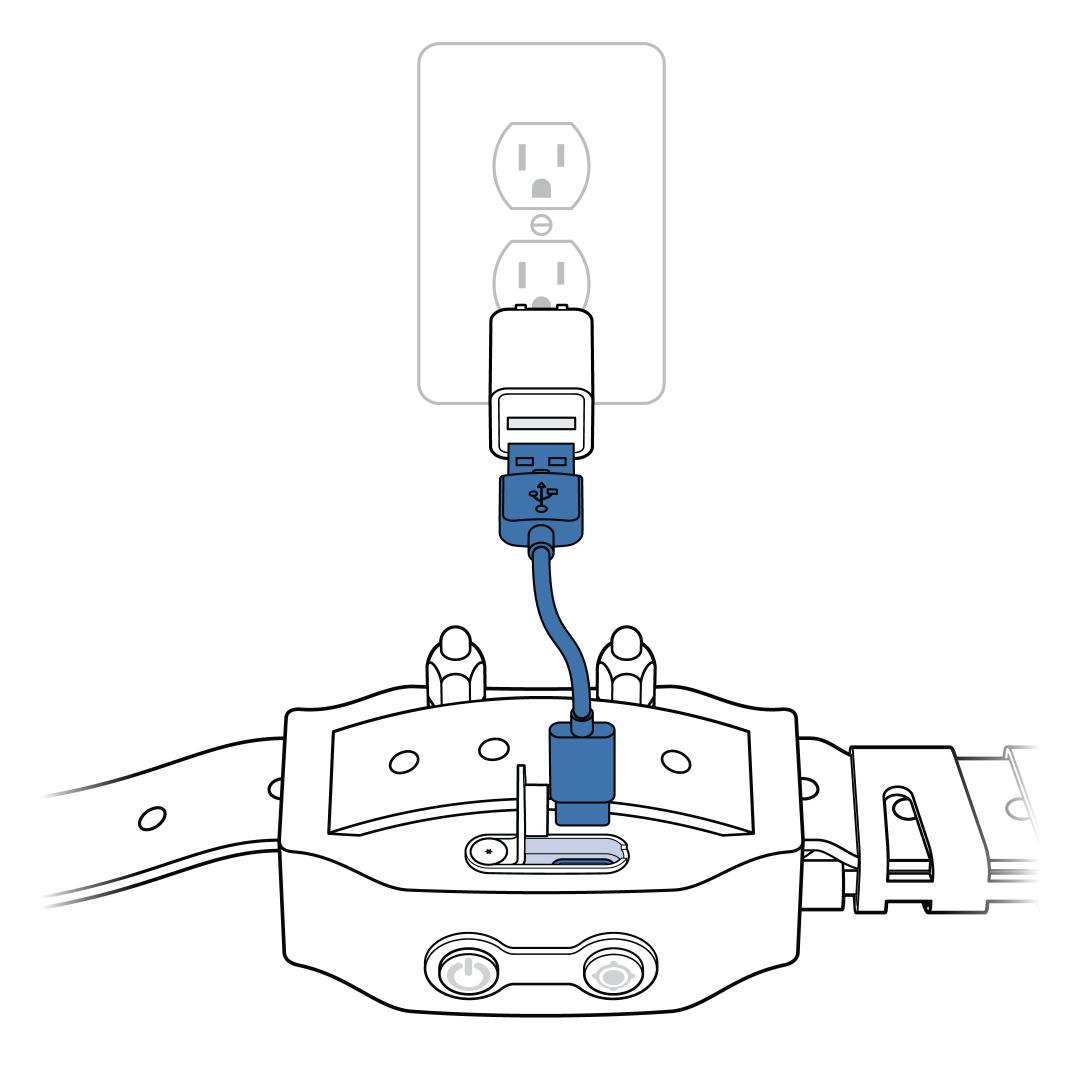
Make sure the collar is powered on and charged.
- If the collar has low battery or will not turn on, start by charging the collar.
- For more information on charging, visit How To Turn On, Turn Off and Charge My PetSafe® GPS Customizable Dog Fence.
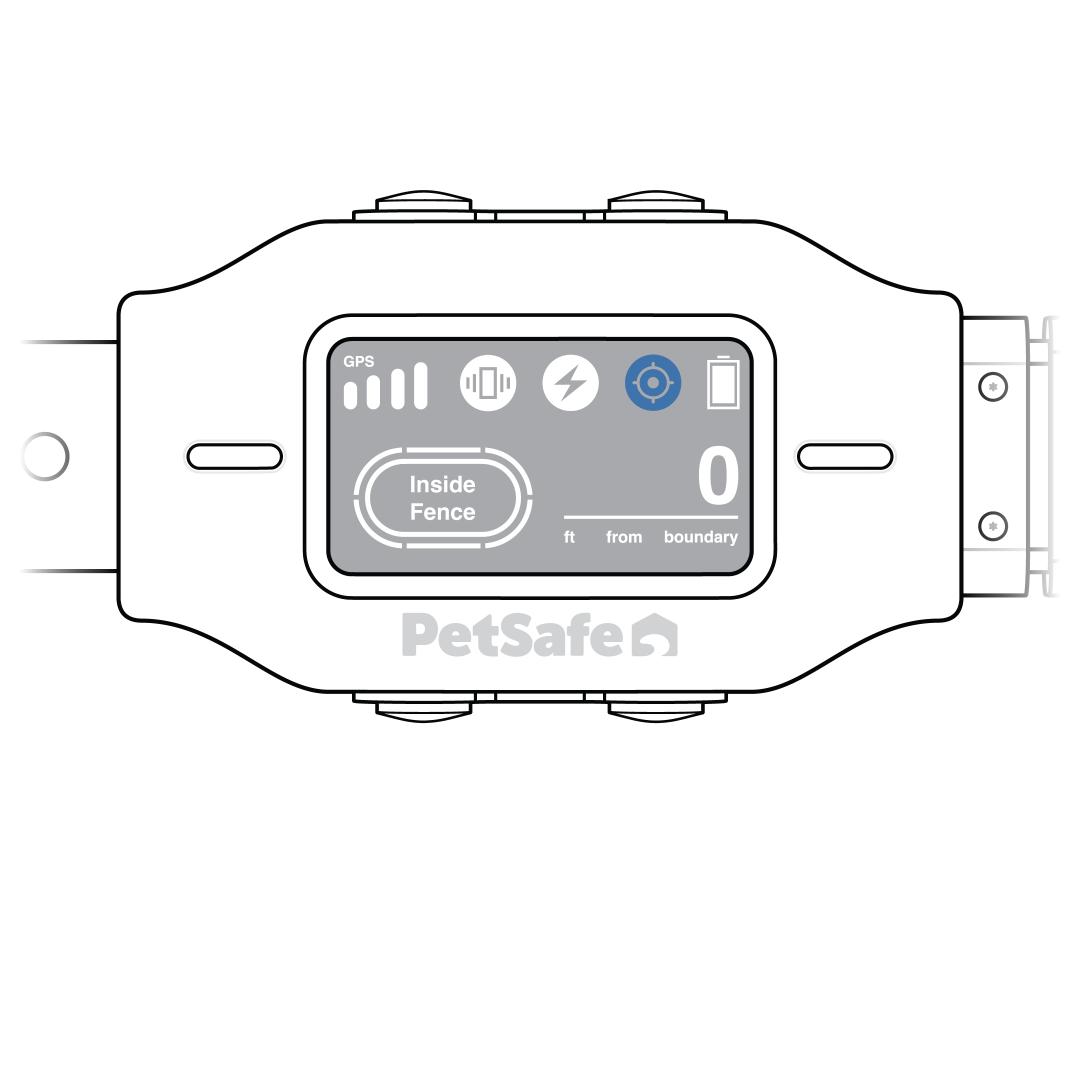
Make sure you have a fence created.
- If you have a fence created, you will see the fence icon on the home screen.
- If you need help creating a fence, visit How To Create or Reset a Fence For My PetSafe® GPS Customizable Dog Fence.
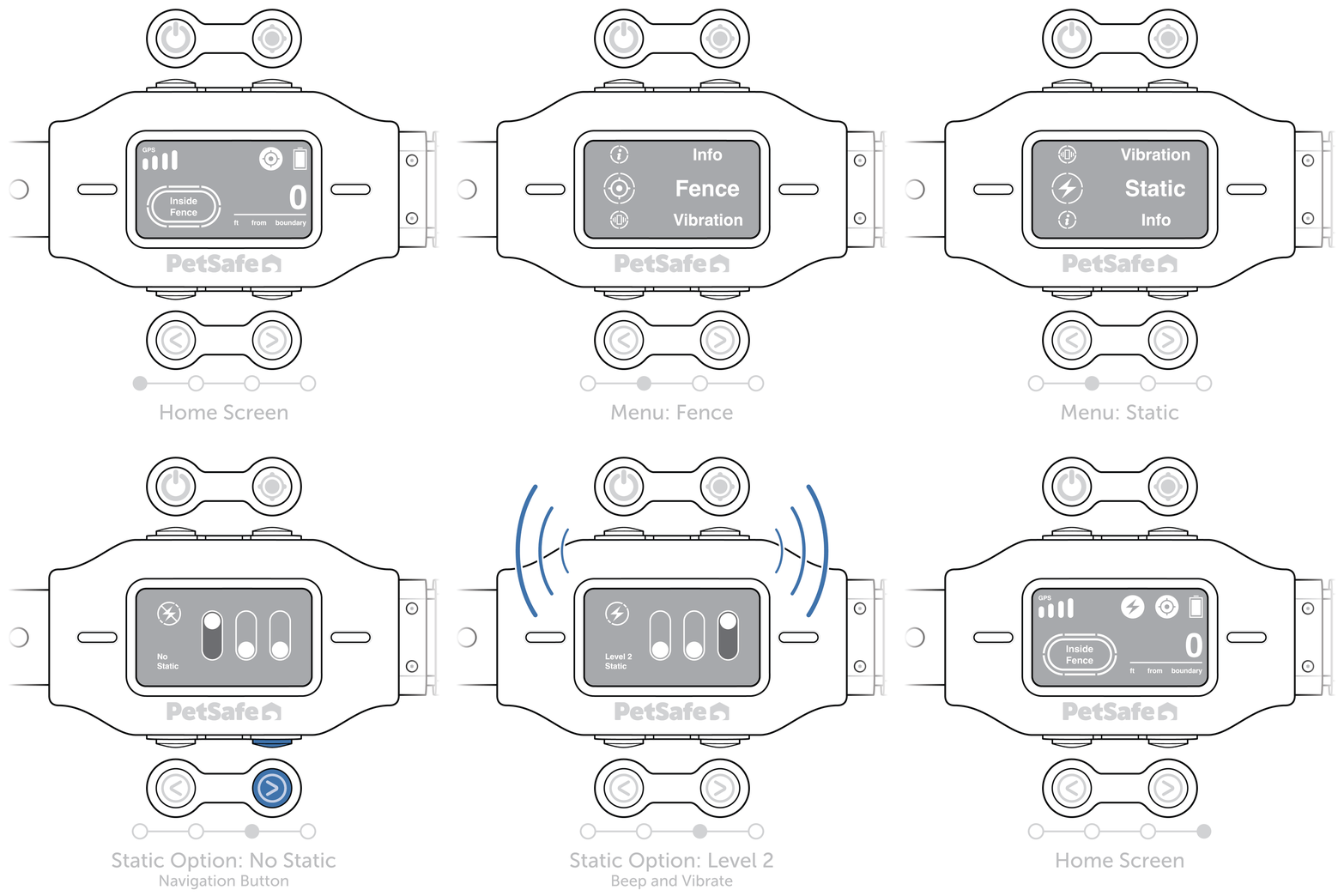
Verify the correction level setting.
- If the collar is set to Tone Only, increase the correction to Vibration or Static as needed.
- For more information, visit How To Change the Correction Level on My PetSafe® GPS Customizable Dog Fence.
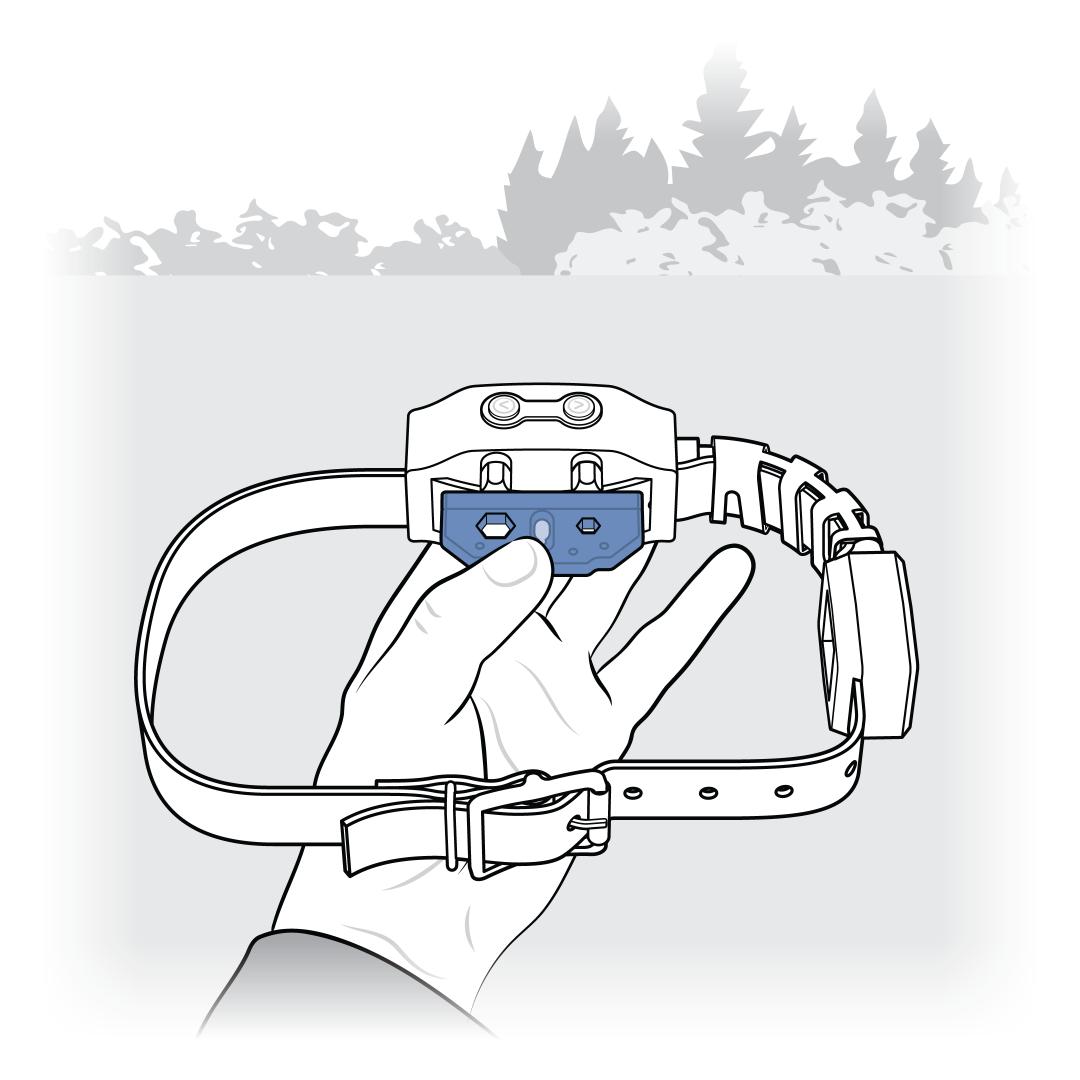
Check that the collar activates at the boundary.
- Start inside the boundary and confirm the display shows “Inside Fence”
- Hold the Test Light Tool to the Contact Points and walk the collar toward each side of the boundary zone.
- Confirm the home screen changes from “Inside Fence” to “Near Fence” and then “Outside Fence”.
- Confirm the collar activates the selected tone, vibration or static correction at the boundary zone.
- For more information, visit How To Test My PetSafe® GPS Customizable Dog Fence for Correction.
Reset the fence if the collar doesn’t correct at the boundary zone.
- For more information, visit How To Create or Reset a Fence For My PetSafe® GPS Customizable Dog Fence.
Revisit training if the collar corrects at the boundary but your dog does not respond to the correction.
- Start with the collar on tone only and attach a second, non-metallic collar placed above the training collar.
- Allow them to explore the pet area and lead them to the boundary zone to hear the tone.
- Return them to the pet area and reward them their favorite toy or treat.
- For more information, visit How To Train My Dog on the PetSafe® GPS Customizable Dog Fence: Phase 1.